Out-of-the-box in: UI Kit Builder ✅ | Widget Builder ✅ | UI Kits ✅ | SDK ✅
Implementation
| Technology | Support | Docs |
|---|---|---|
| UI Kit Builder | ✅ | |
| Widget Builder | ✅ | |
| UI Kits | ✅ |     |
| SDK | ✅ |

Instant Messaging
Enable real-time one-to-one and group chat so users can send and receive messages instantly. Messages are delivered in milliseconds with automatic retry and offline queuing. When to use: Customer support, team collaboration, social apps, marketplace buyer-seller communication.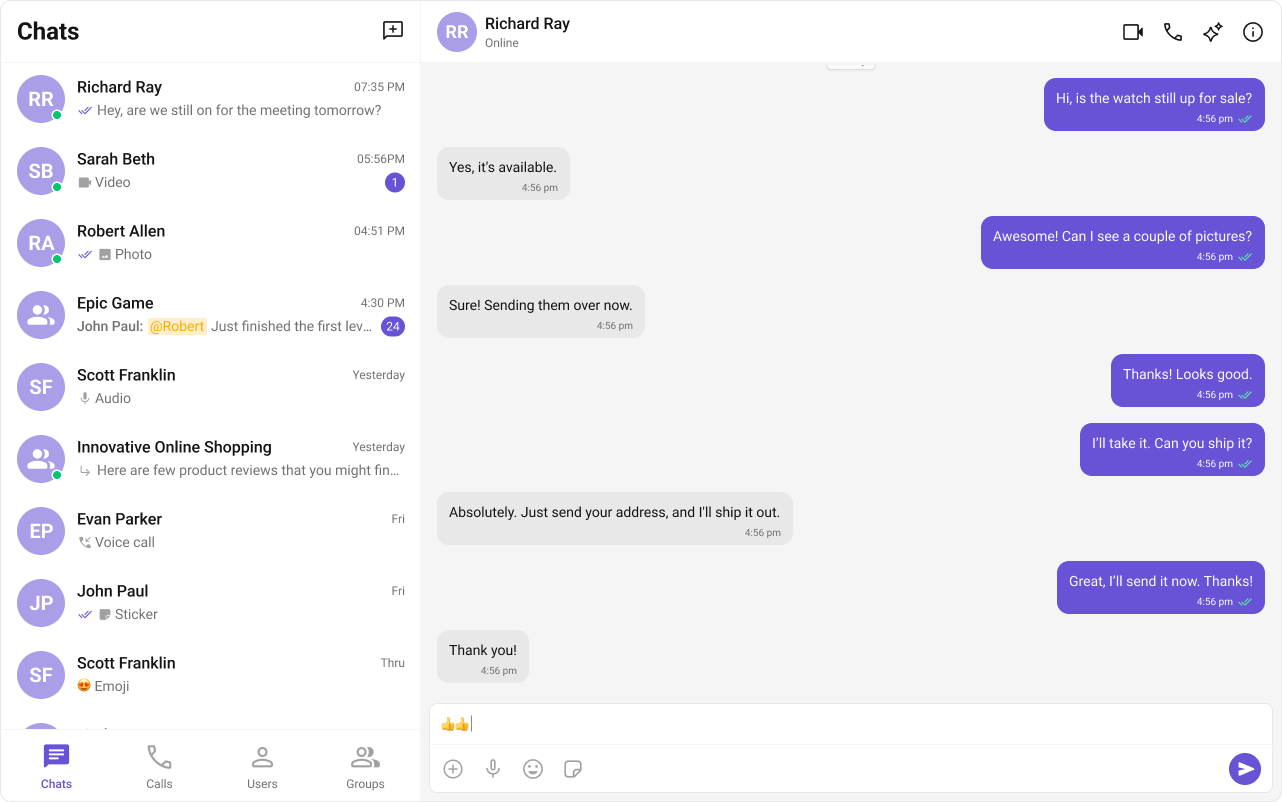
Media Sharing
Let users share images, videos, documents, and other files directly within conversations. Supports common formats including PNG, JPG, GIF, MP4, PDF, and more. When to use: Sharing product photos, sending contracts, collaborating on designs, sharing receipts.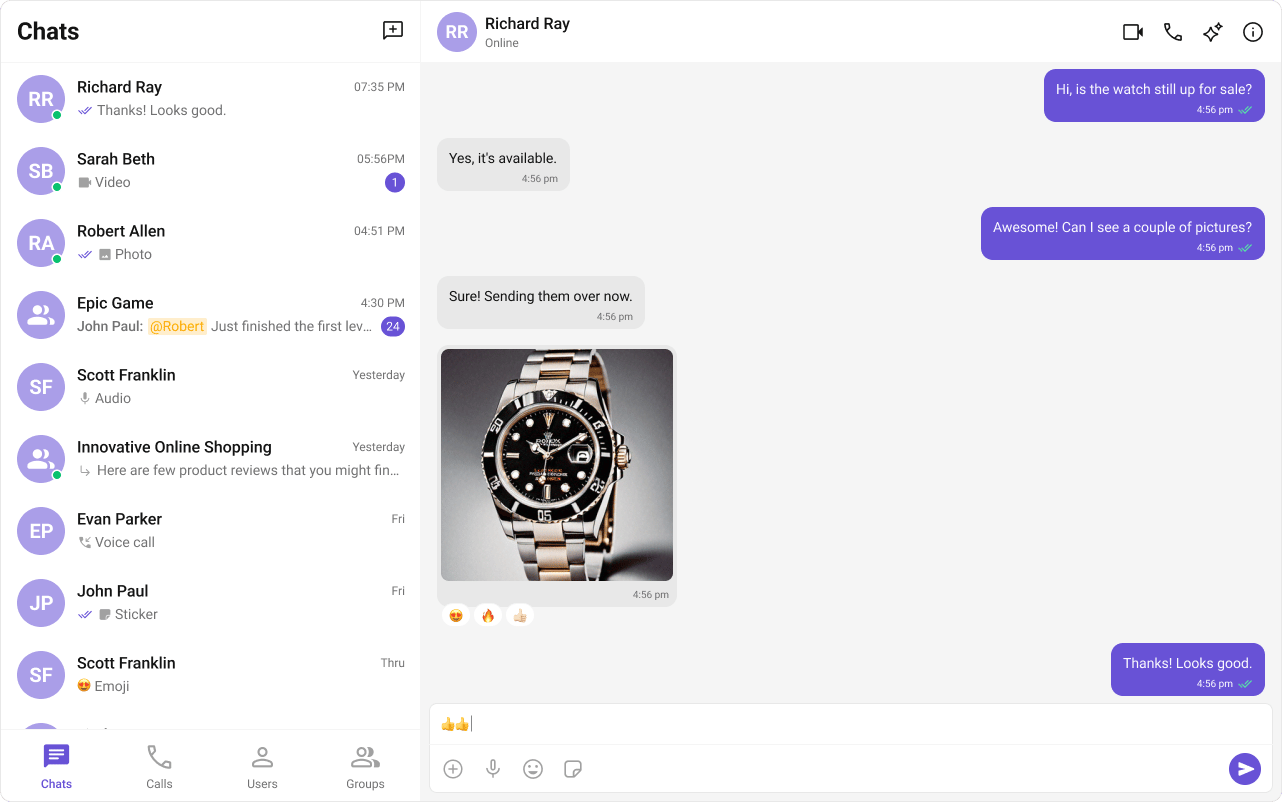
Group Chats
Support conversations with multiple participants for teams, communities, or events. Groups can be public (open to join) or private (invite-only). When to use: Team channels, community forums, event coordination, study groups.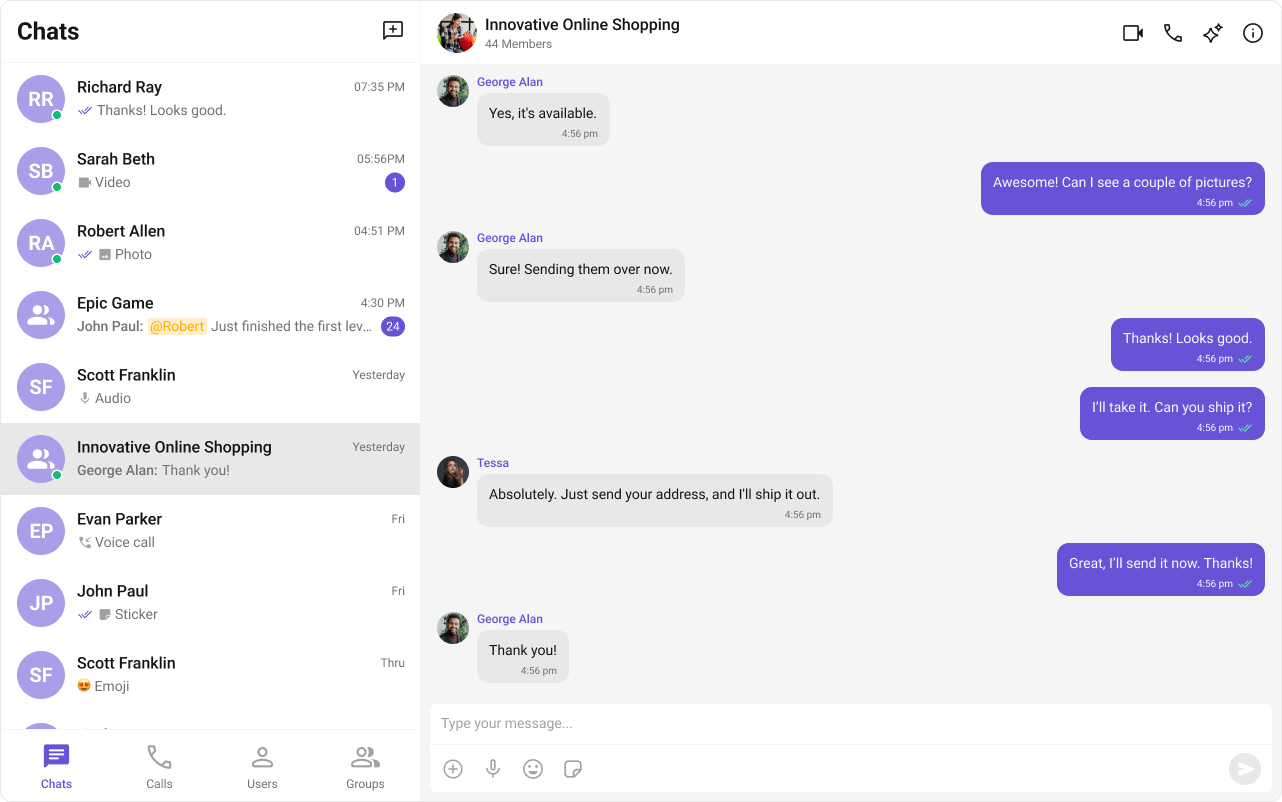
Read Receipts
Show when messages are delivered and when they are read, so users know message status at a glance. Displays delivery and read timestamps for transparency. When to use: Business communication where confirmation matters, time-sensitive messaging.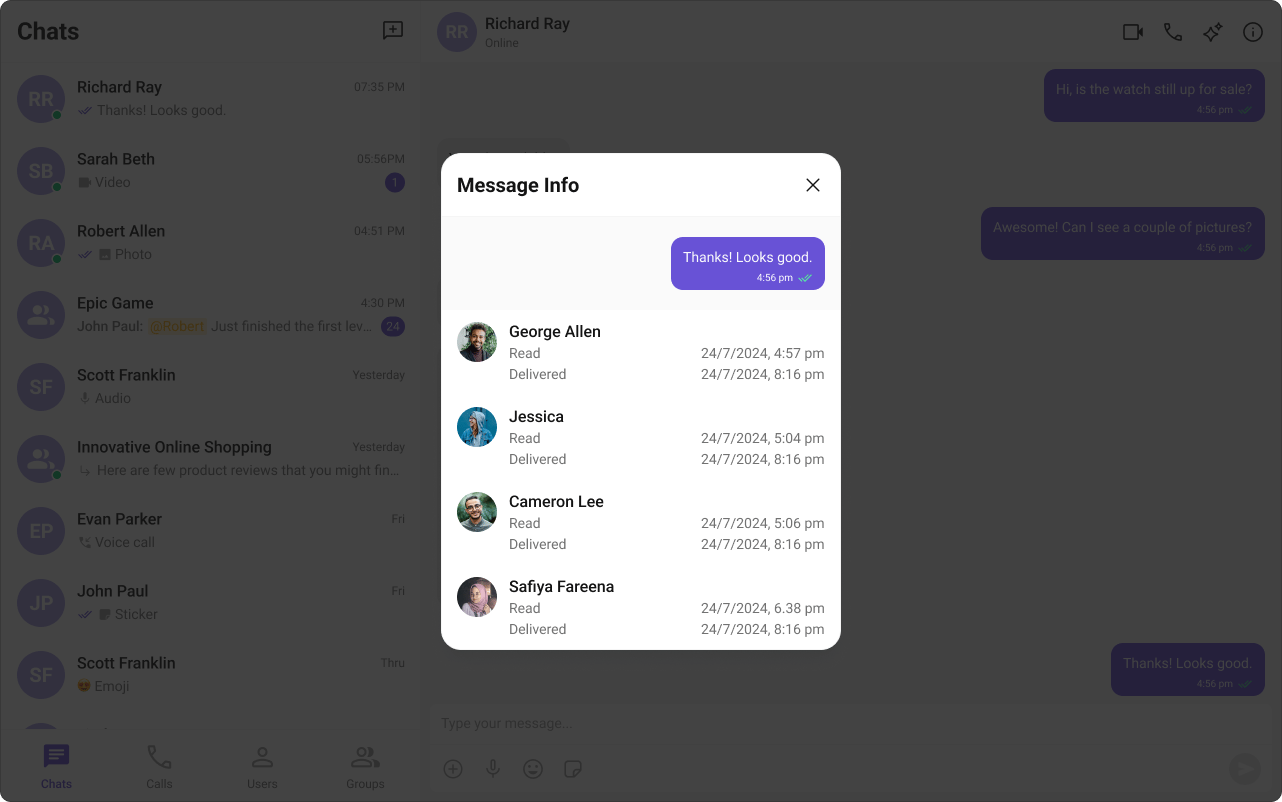
Mark as Unread
Allow users to mark messages as unread so they can revisit important conversations later. Helps users manage their inbox and prioritize responses. When to use: Flagging messages for follow-up, managing high-volume conversations.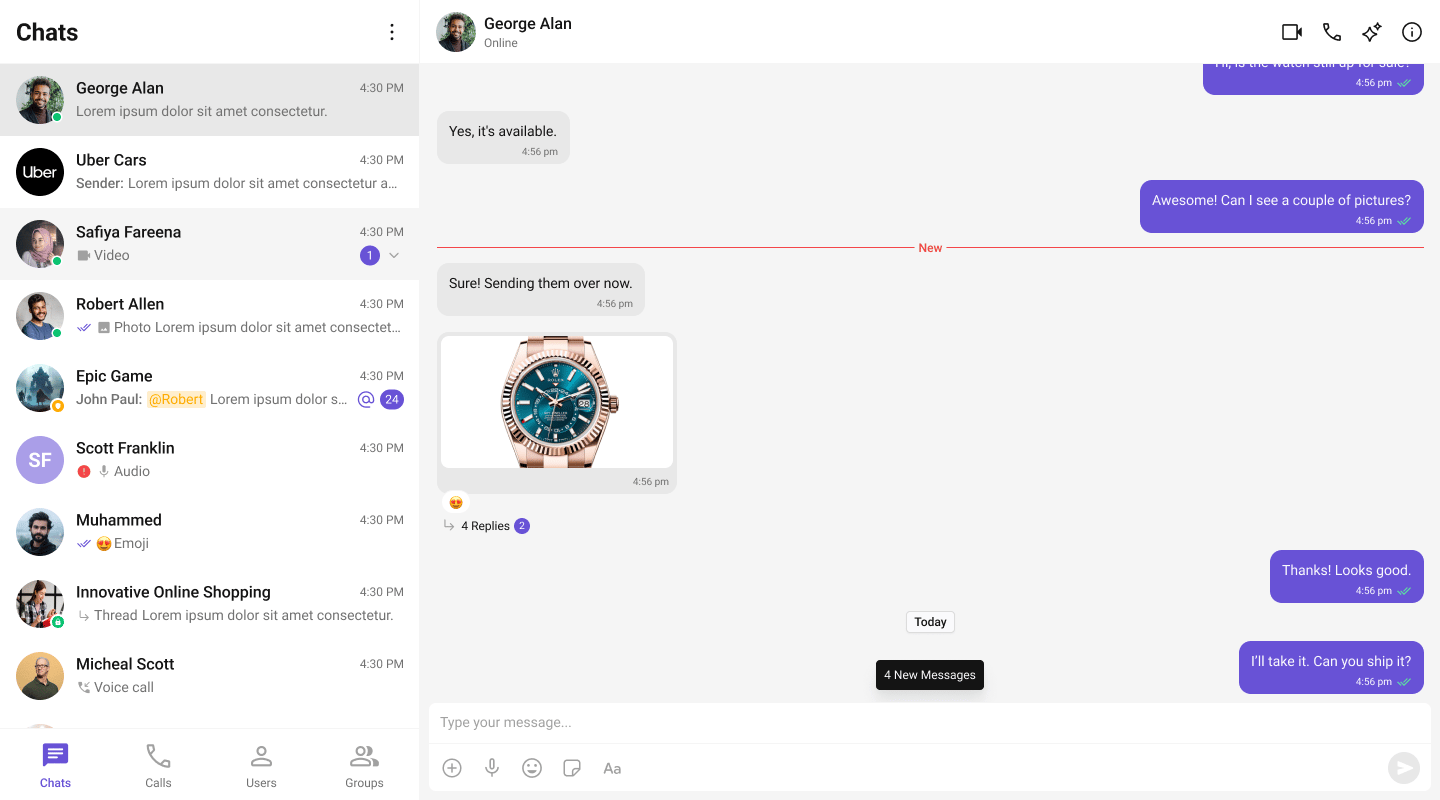
Typing Indicator
Display when another user is typing to make conversations feel more responsive and natural. Creates a real-time, in-person conversation feel. When to use: Live support chats, real-time collaboration, social messaging.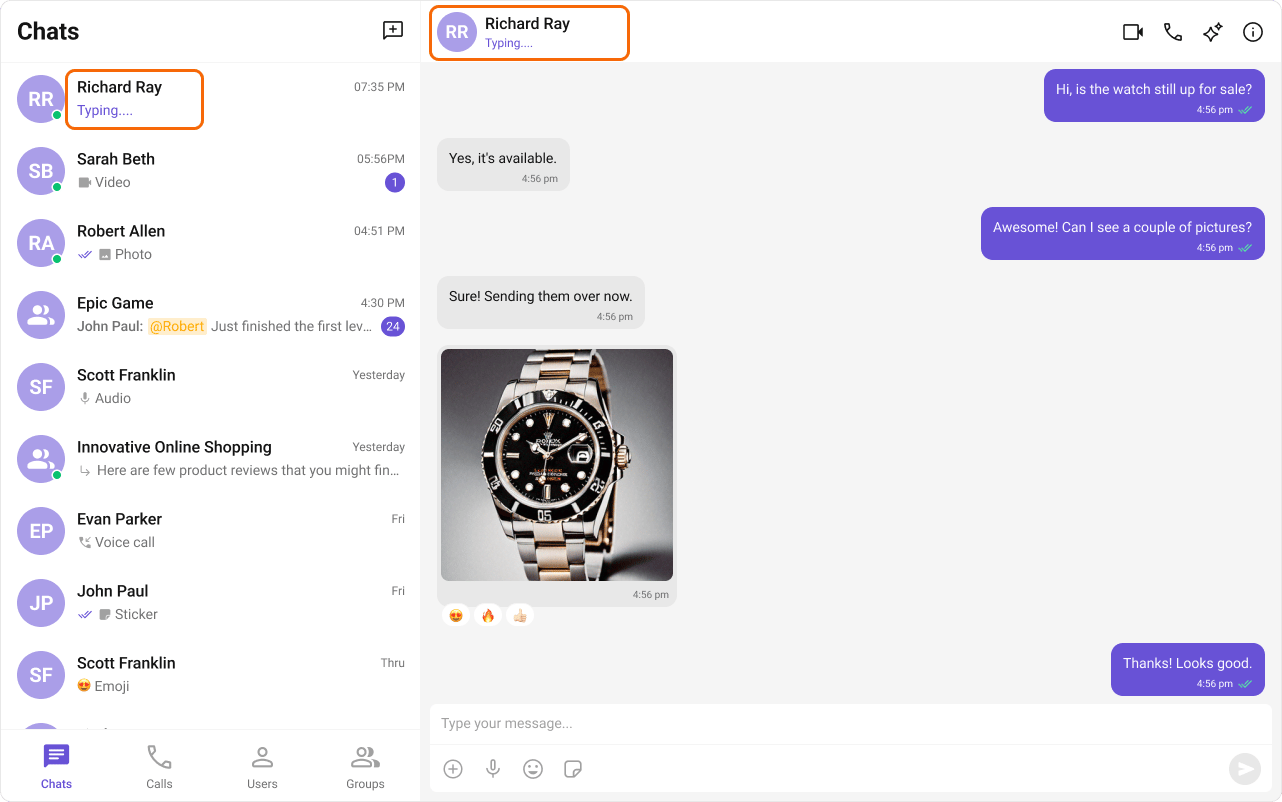
User Presence
Show online, offline, and last-seen states to help users understand availability. Automatically updates based on user activity. When to use: Knowing when teammates are available, seeing if support agents are online.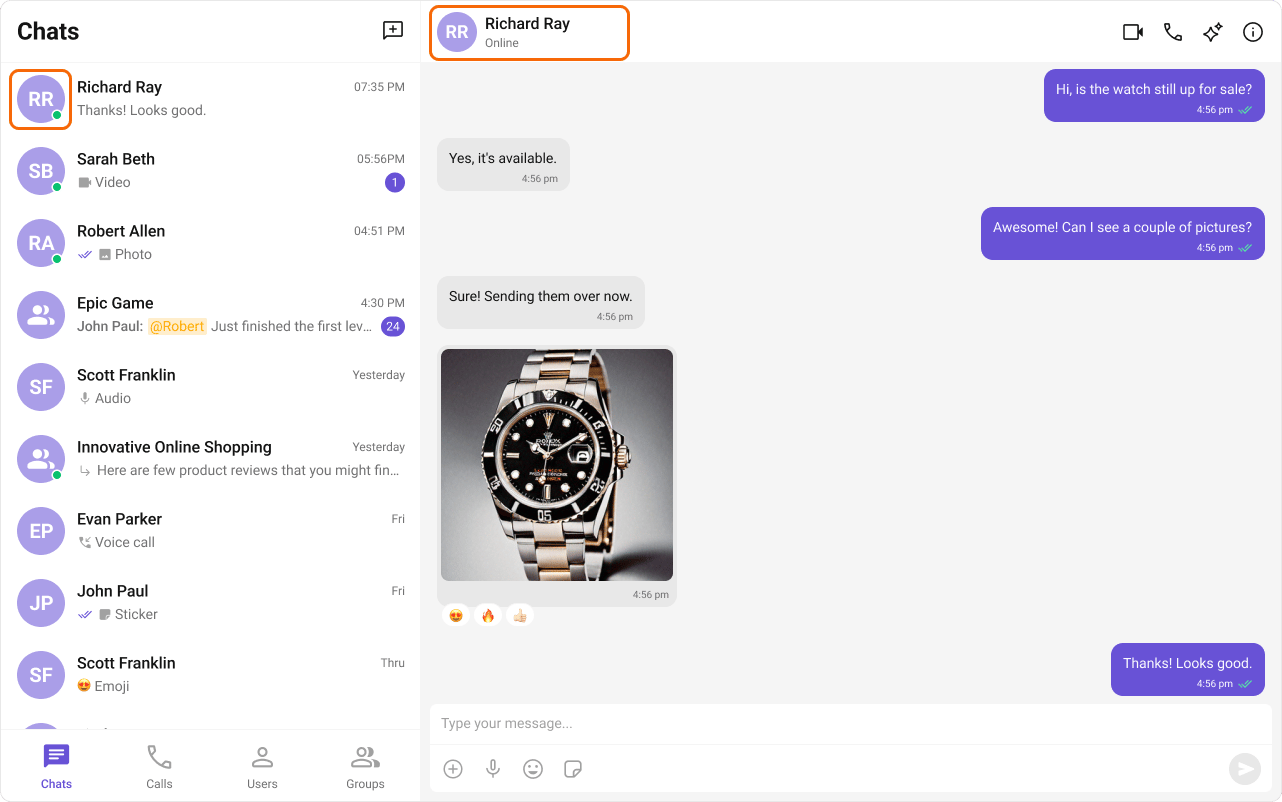
Reactions
Let users react to messages with emojis for quick feedback without sending a new message. Reduces chat clutter while maintaining engagement. When to use: Acknowledging messages, voting on ideas, expressing sentiment quickly.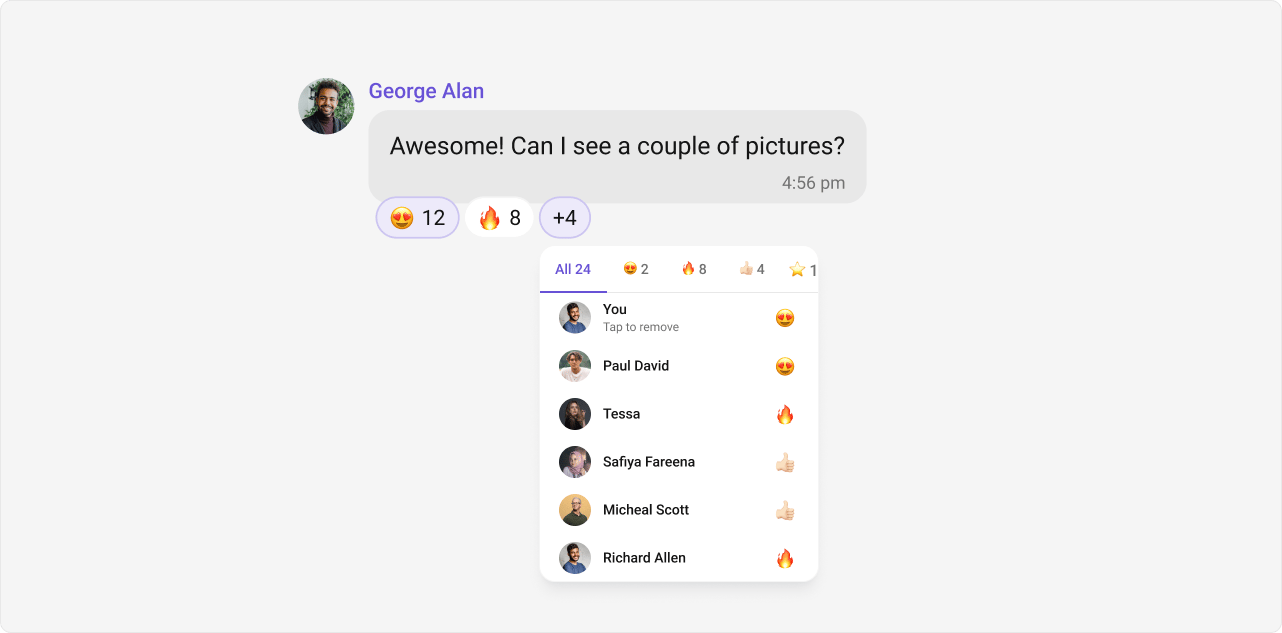
Mentions
Tag specific users (or everyone in a group) to draw attention inside busy conversations. Mentioned users receive notifications even if they’ve muted the conversation. When to use: Getting someone’s attention in busy channels, assigning tasks, escalating issues.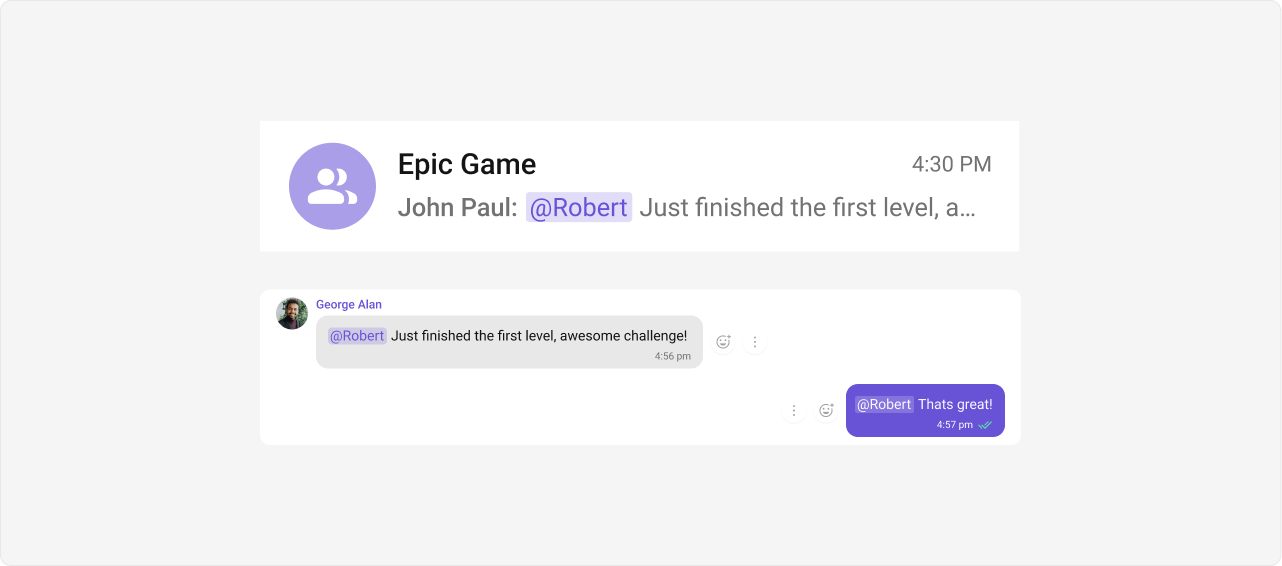
Threaded Conversations
Create message threads inside group chats to keep context organized. Keeps side discussions from cluttering the main conversation. When to use: Discussing specific topics in team channels, Q&A sessions, detailed follow-ups.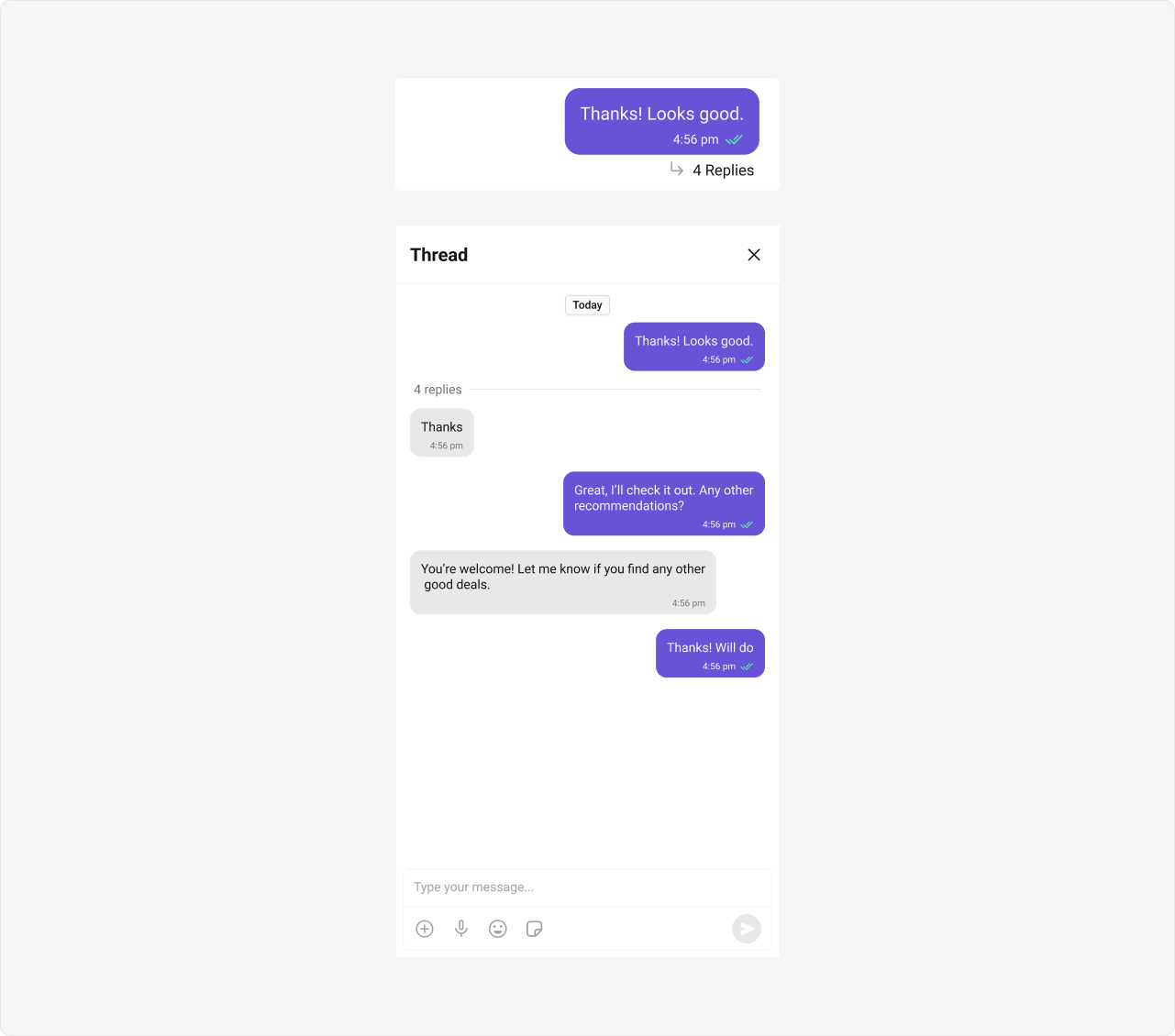
Quoted replies
Reply to a specific message with a quote to maintain clarity and context. Makes it clear which message you’re responding to in busy conversations. When to use: Answering specific questions, referencing earlier points, providing context.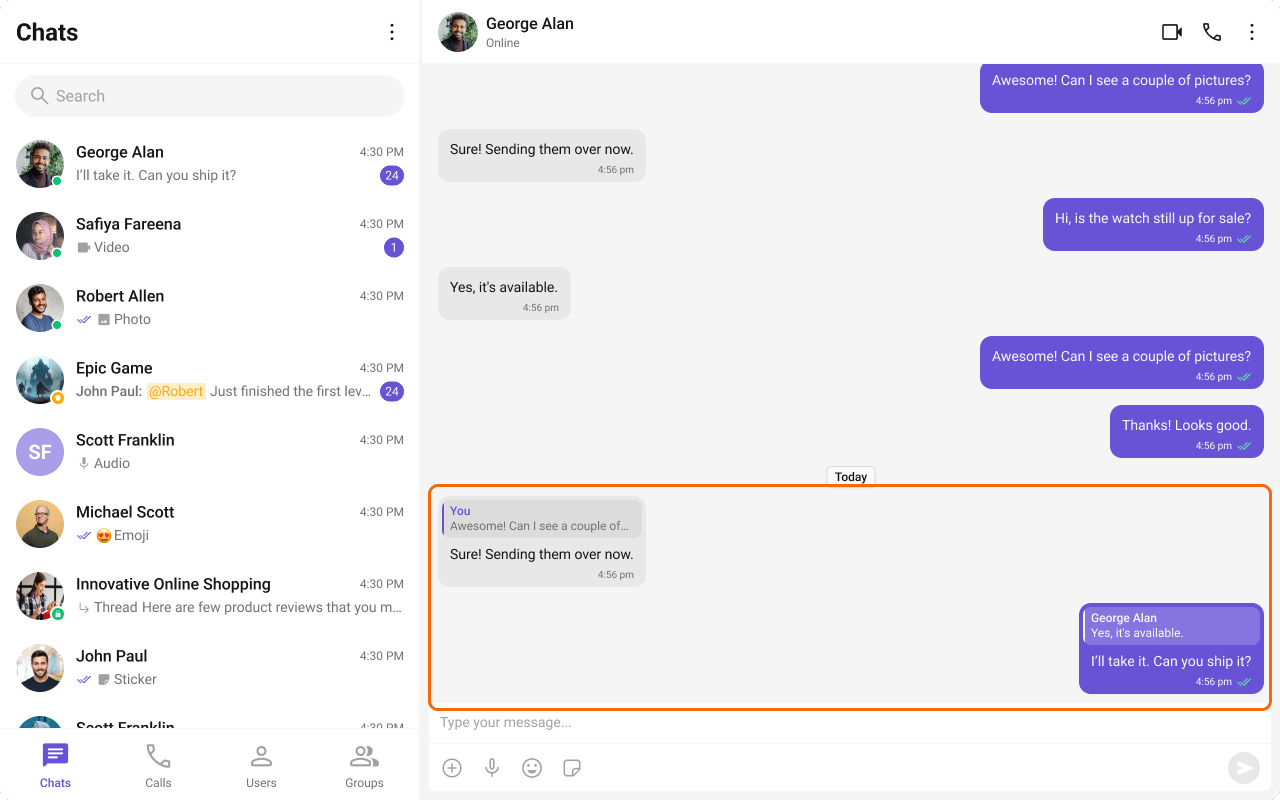
Report Message
Allow users to report inappropriate or harmful messages directly from chat. Reports can be reviewed by moderators to maintain community standards. When to use: Community moderation, compliance requirements, user safety.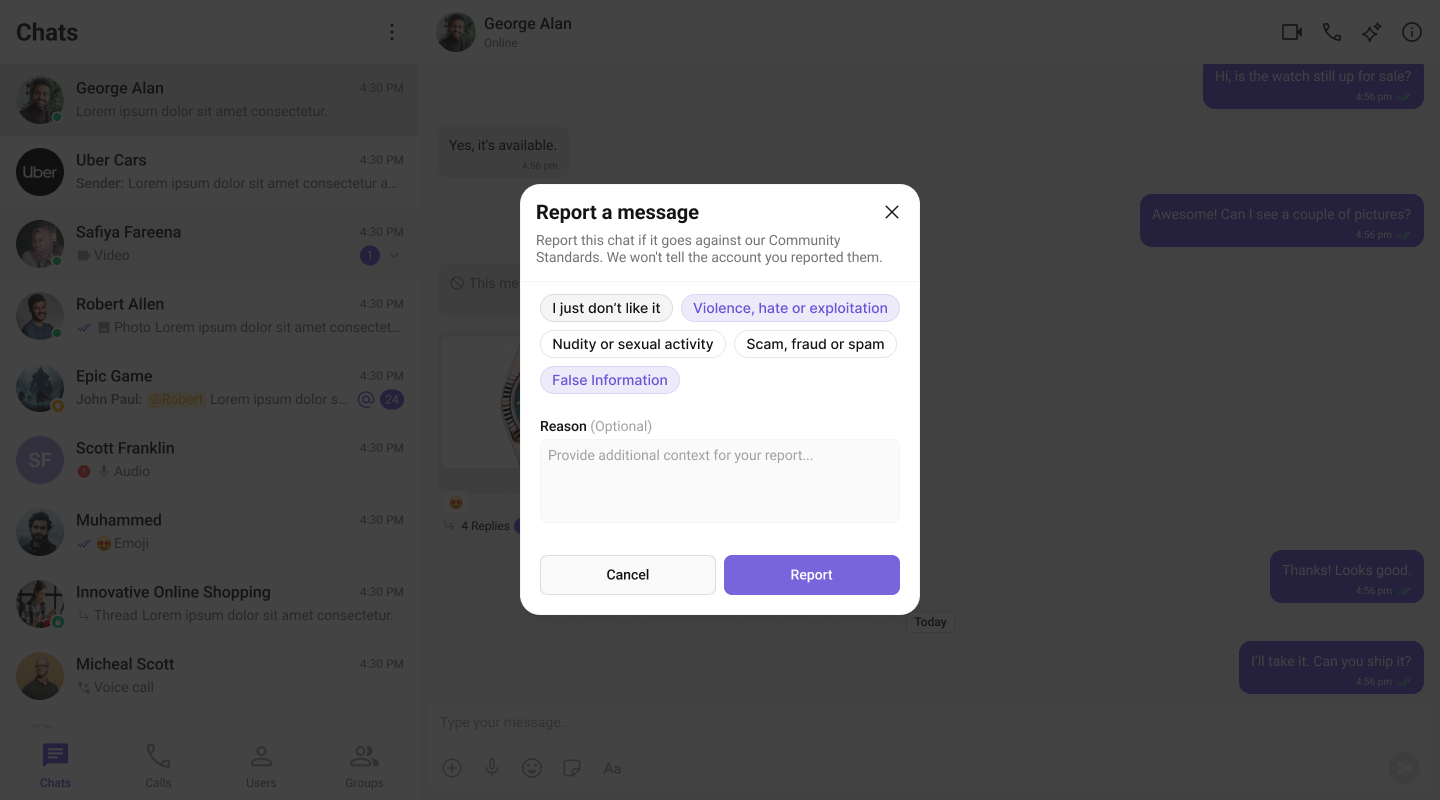
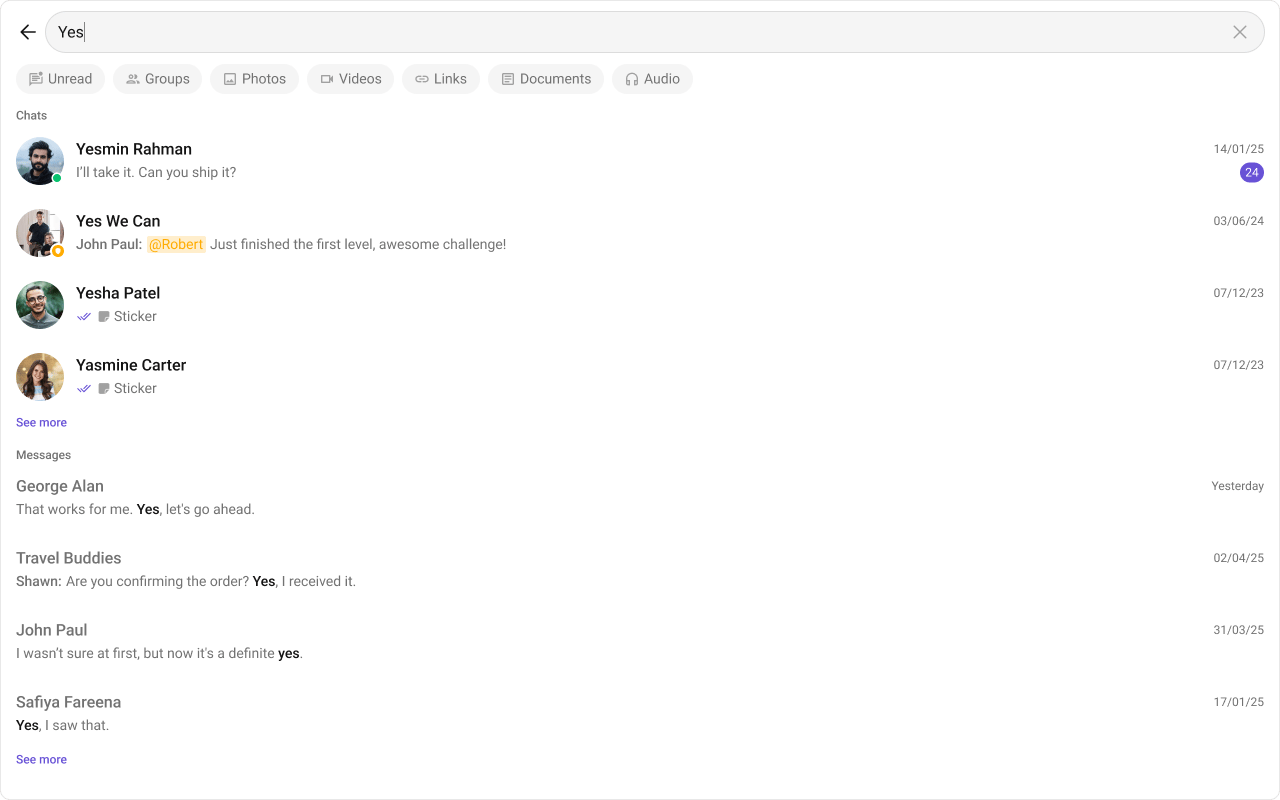
Conversation and Advanced Search
Search conversations by user or group name, apply advanced message filters such as links, attachments, reactions, mentions, or specific mentioned UIDs, and search across all conversations. When to use: Finding past discussions, locating shared files, auditing conversations.Conversation search and advanced message search requires enabling the feature in the CometChat dashboard under Chat and Messaging → Features → Conversation and Advanced Search.