> ## Documentation Index
> Fetch the complete documentation index at: https://cometchat-22654f5b-docs-platform-docs-release.mintlify.site/llms.txt
> Use this file to discover all available pages before exploring further.
# Call Log With Details
> Call Log With Details — CometChat documentation.
## Overview
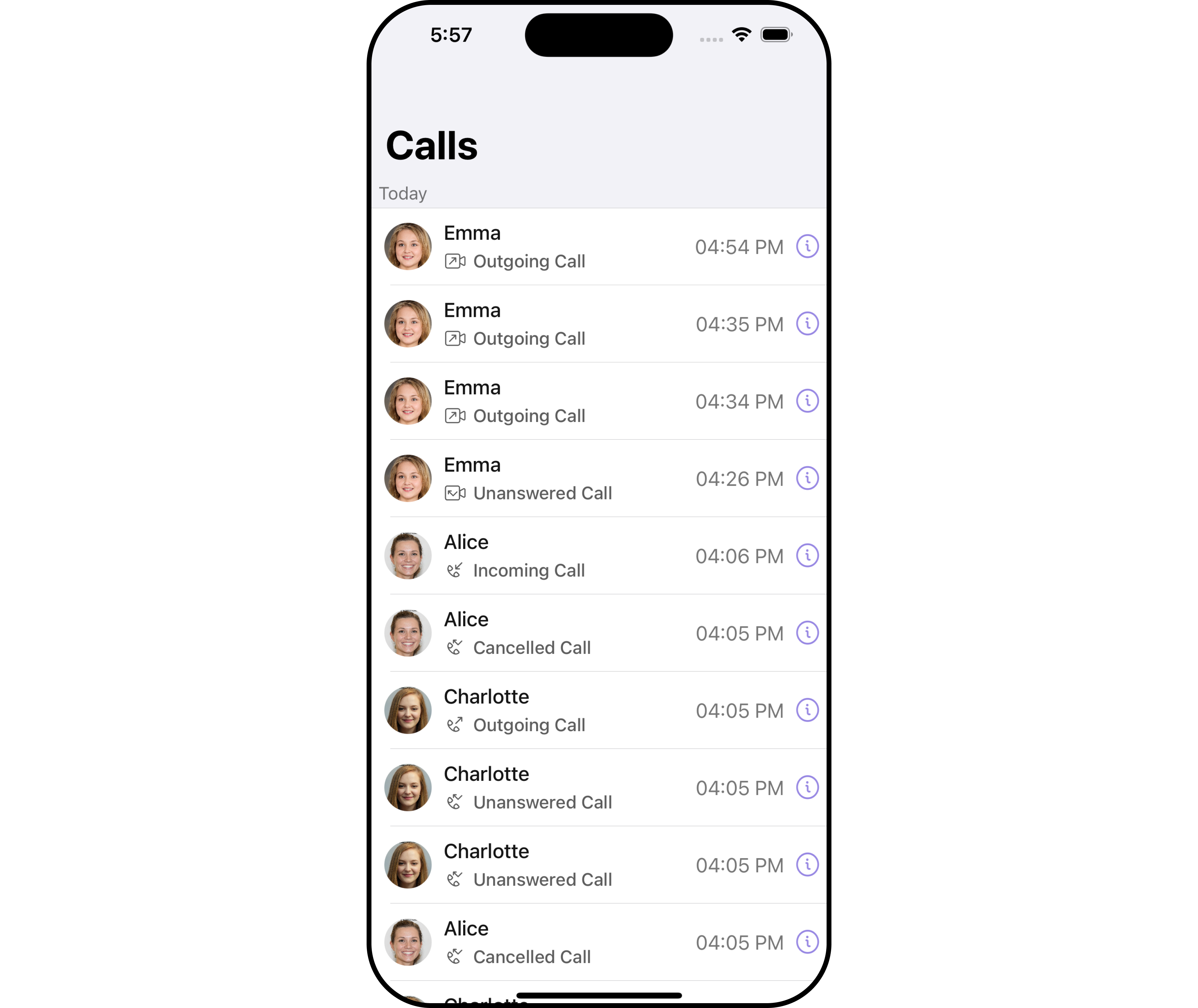
The `CometChatCallLogsWithDetails` is a [Composite Component](/ui-kit/ios/v4/components-overview#composite-components) encompassing components such as [Call Logs](/ui-kit/ios/v4/call-logs) and [Call Log Details](/ui-kit/ios/v4/call-log-details). Both of these component contributes to the functionality and structure of the overall `CallLogsWithDetails` component.
 ***
## Usage
### Integration
`CometChatCallLogsWithDetails` is a ViewController component that seamlessly integrates into your application. You can push it onto the navigation stack using a navigation controller. This allows for easy navigation and efficient display of call log details within your application's interface.
```swift theme={null}
let callLogWithDetails = CometChatCallLogsWithDetails()
self.navigationController?.pushViewController(callLogWithDetails, animated: true)
```
### Actions
[Actions](/ui-kit/ios/v4/components-overview#actions) dictate how a component functions. They are divided into two types: Predefined and User-defined. You can override either type, allowing you to tailor the behavior of the component to fit your specific needs.
##### 1. OnItemClick
This method proves valuable when users seek to override onItemClick functionality within CometChatCallLogsWithDetails, empowering them with greater control and customization options.
The `setOnItemClick` action doesn't have a predefined behavior. You can override this action using the following code snippet.
```swift theme={null}
let callLogsConfiguration = CallLogsConfiguration()
.set(onItemClick: { callLog in
//Perform Your Action
})
```
##### 2. OnError
You can customize this behavior by using the provided code snippet to override the `On Error` and improve error handling.
```swift theme={null}
let callLogsConfiguration = CallLogsConfiguration()
.set (onError:{ error in
//Perform Your Action
})
```
***
### Filters
**Filters** allow you to customize the data displayed in a list within a Component. You can filter the list based on your specific criteria, allowing for a more customized. Filters can be applied using RequestBuilders of Chat SDK.
While the **CallLogsWithDetails** component does not have filters, its components do, For more detail on individual filters of its component refer to [Call Logs](/ui-kit/ios/v4/call-logs) and [Call Log Details](/ui-kit/ios/v4/call-log-details).
By utilizing the [Configurations](#configurations) object of its components, you can apply filters.
##### 1. CallRequestBuilder
The [callRequestBuilder](/ui-kit/ios/v4/call-logs) enables you to filter and customize the call list based on available parameters in callRequestBuilder. This feature allows you to create more specific and targeted queries during the call. The following are the parameters available in [callRequestBuilder](/ui-kit/ios/v4/call-logs)
| Method | Description | Code |
| ----------------- | --------------------------------------------------- | ------------------------------------ |
| **authToken** | Sets the auth token for the call logs request | `.set(authToken: String?)` |
| **callCategory** | Sets the call category for the call logs request | `.set(callCategory: CallCategory)` |
| **callDirection** | Sets the call direction for the call logs request | `.set(callDirection: CallDirection)` |
| **callStatus** | Sets the call status for the call logs request | `.set(callStatus: CallStatus)` |
| **callType** | Sets the call type for the call logs request | `.set(callType: CallType)` |
| **guid** | Sets the group ID for the call logs request | `.set(guid: String)` |
| **hasRecording** | Sets the recording status for the call logs request | `.set(hasRecording: Bool)` |
| **limit** | Sets the limit for the call logs request | `.set(limit: Int)` |
| **uid** | Sets the user ID for the call logs request | `.set(uid: String)` |
**Example**
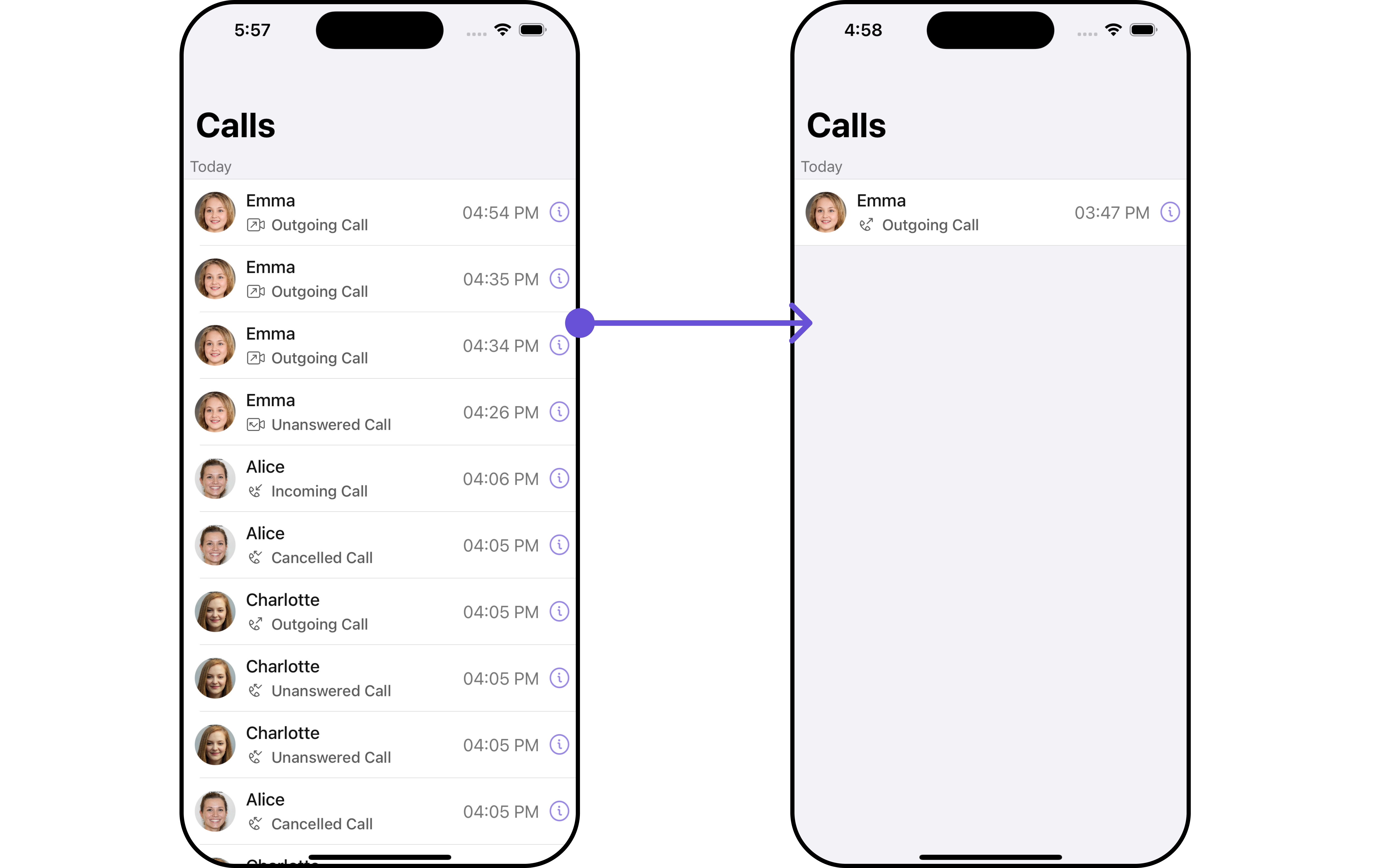
In the example below, we are applying a filter based on limit and calltype.
***
## Usage
### Integration
`CometChatCallLogsWithDetails` is a ViewController component that seamlessly integrates into your application. You can push it onto the navigation stack using a navigation controller. This allows for easy navigation and efficient display of call log details within your application's interface.
```swift theme={null}
let callLogWithDetails = CometChatCallLogsWithDetails()
self.navigationController?.pushViewController(callLogWithDetails, animated: true)
```
### Actions
[Actions](/ui-kit/ios/v4/components-overview#actions) dictate how a component functions. They are divided into two types: Predefined and User-defined. You can override either type, allowing you to tailor the behavior of the component to fit your specific needs.
##### 1. OnItemClick
This method proves valuable when users seek to override onItemClick functionality within CometChatCallLogsWithDetails, empowering them with greater control and customization options.
The `setOnItemClick` action doesn't have a predefined behavior. You can override this action using the following code snippet.
```swift theme={null}
let callLogsConfiguration = CallLogsConfiguration()
.set(onItemClick: { callLog in
//Perform Your Action
})
```
##### 2. OnError
You can customize this behavior by using the provided code snippet to override the `On Error` and improve error handling.
```swift theme={null}
let callLogsConfiguration = CallLogsConfiguration()
.set (onError:{ error in
//Perform Your Action
})
```
***
### Filters
**Filters** allow you to customize the data displayed in a list within a Component. You can filter the list based on your specific criteria, allowing for a more customized. Filters can be applied using RequestBuilders of Chat SDK.
While the **CallLogsWithDetails** component does not have filters, its components do, For more detail on individual filters of its component refer to [Call Logs](/ui-kit/ios/v4/call-logs) and [Call Log Details](/ui-kit/ios/v4/call-log-details).
By utilizing the [Configurations](#configurations) object of its components, you can apply filters.
##### 1. CallRequestBuilder
The [callRequestBuilder](/ui-kit/ios/v4/call-logs) enables you to filter and customize the call list based on available parameters in callRequestBuilder. This feature allows you to create more specific and targeted queries during the call. The following are the parameters available in [callRequestBuilder](/ui-kit/ios/v4/call-logs)
| Method | Description | Code |
| ----------------- | --------------------------------------------------- | ------------------------------------ |
| **authToken** | Sets the auth token for the call logs request | `.set(authToken: String?)` |
| **callCategory** | Sets the call category for the call logs request | `.set(callCategory: CallCategory)` |
| **callDirection** | Sets the call direction for the call logs request | `.set(callDirection: CallDirection)` |
| **callStatus** | Sets the call status for the call logs request | `.set(callStatus: CallStatus)` |
| **callType** | Sets the call type for the call logs request | `.set(callType: CallType)` |
| **guid** | Sets the group ID for the call logs request | `.set(guid: String)` |
| **hasRecording** | Sets the recording status for the call logs request | `.set(hasRecording: Bool)` |
| **limit** | Sets the limit for the call logs request | `.set(limit: Int)` |
| **uid** | Sets the user ID for the call logs request | `.set(uid: String)` |
**Example**
In the example below, we are applying a filter based on limit and calltype.
 ```swift theme={null}
let callRequestBuilder = CallLogsRequest.CallLogsBuilder()
.set(authToken: CometChat.getUserAuthToken())
.set(limit: 1)
.set(callCategory: .call)
let callLogWithDetails = CometChatCallLogsWithDetails()
.set(callRequestBuilder: callRequestBuilder)
self.navigationController?.pushViewController(callLogWithDetails, animated: true)
```
***
### Events
[Events](/ui-kit/ios/v4/components-overview#events) are emitted by a `Component`. By using event you can extend existing functionality. Being global events, they can be applied in Multiple Locations and are capable of being Added or Removed.
The `Call LogsWithDetails` component does not have any exposed events.
***
## Customization
To fit your app's design requirements, you can customize the appearance of the conversation component. We provide exposed methods that allow you to modify the experience and behavior according to your specific needs.
### Style
Using Style you can customize the look and feel of the component in your app, These parameters typically control elements such as the color, size, shape, and fonts used within the component.
It's important to note that while `CometChatCallLogsWithDetails` does not provide its own specific styling options, each individual component contained within it offers its own set of styling attributes. This allows for granular customization of each component's appearance to match your application's design requirements and preferences.
##### 1. CallLog Style
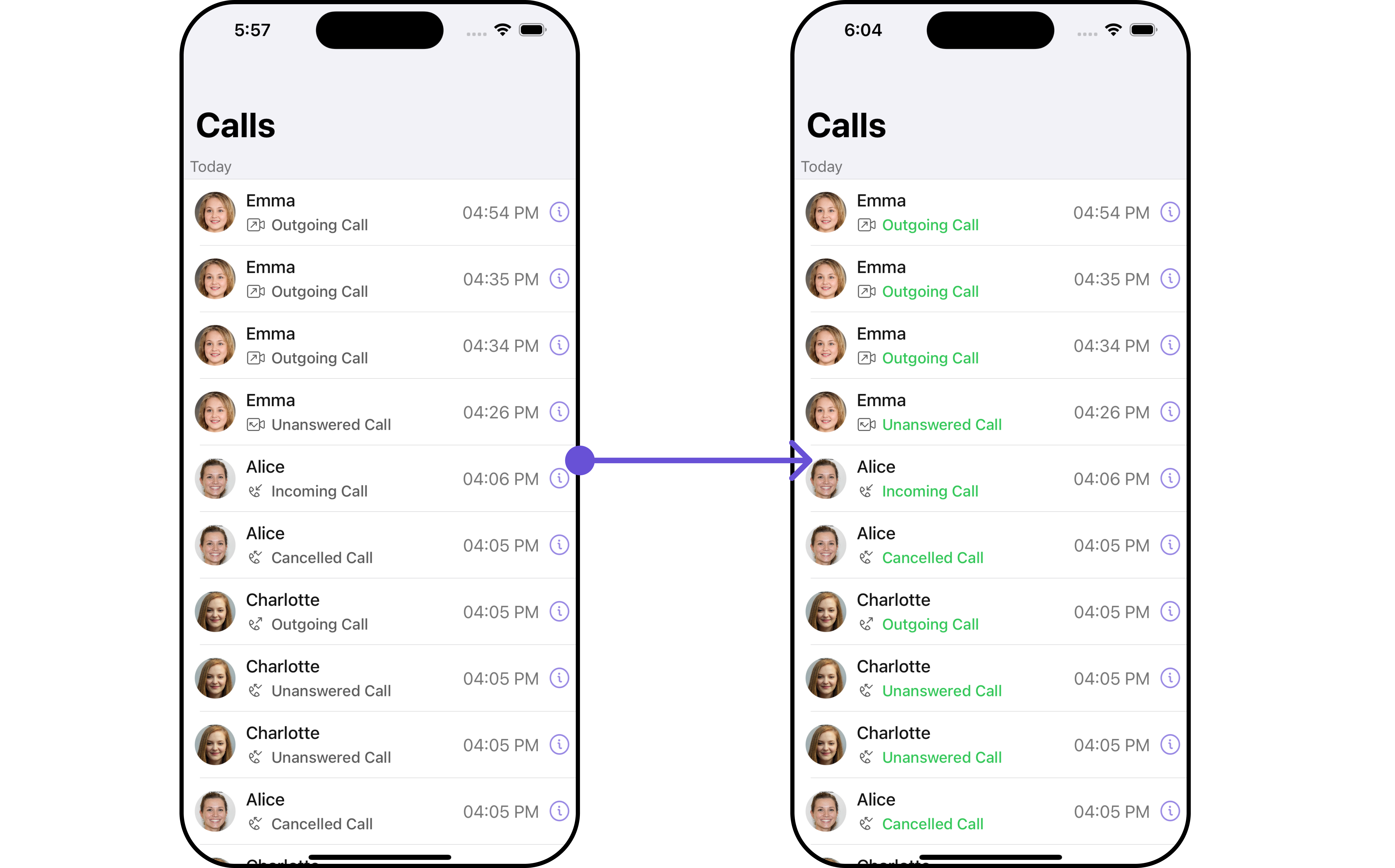
You can customize the appearance of the `CallLog` Component by applying the `CallLogStyle` to it using the following code snippet.
```swift theme={null}
let callRequestBuilder = CallLogsRequest.CallLogsBuilder()
.set(authToken: CometChat.getUserAuthToken())
.set(limit: 1)
.set(callCategory: .call)
let callLogWithDetails = CometChatCallLogsWithDetails()
.set(callRequestBuilder: callRequestBuilder)
self.navigationController?.pushViewController(callLogWithDetails, animated: true)
```
***
### Events
[Events](/ui-kit/ios/v4/components-overview#events) are emitted by a `Component`. By using event you can extend existing functionality. Being global events, they can be applied in Multiple Locations and are capable of being Added or Removed.
The `Call LogsWithDetails` component does not have any exposed events.
***
## Customization
To fit your app's design requirements, you can customize the appearance of the conversation component. We provide exposed methods that allow you to modify the experience and behavior according to your specific needs.
### Style
Using Style you can customize the look and feel of the component in your app, These parameters typically control elements such as the color, size, shape, and fonts used within the component.
It's important to note that while `CometChatCallLogsWithDetails` does not provide its own specific styling options, each individual component contained within it offers its own set of styling attributes. This allows for granular customization of each component's appearance to match your application's design requirements and preferences.
##### 1. CallLog Style
You can customize the appearance of the `CallLog` Component by applying the `CallLogStyle` to it using the following code snippet.
 ```swift theme={null}
let callLogStyle = CallLogStyle()
.set(background: .systemCyan)
.set(callTimeTextColor: .systemGreen)
.set(borderWidth: 7)
.set(borderColor: .brown)
let callLogsConfiguration = CallLogsConfiguration()
.set(style: callLogStyle)
let callLogWithDetails = CometChatCallLogsWithDetails()
.set(callLogConfiguration: callLogsConfiguration)
```
List of properties exposed by CallLogStyle
| Property | Description | Code |
| ---------------------- | ---------------------------------------------- | --------------------------------------- |
| callStatusTextFont | Sets the font for the call status text | `.set(callStatusTextFont: UIFont)` |
| missedCallTitleTint | Sets the tint for the missed call title | `.set(missedCallTitleTint: UIColor)` |
| callTimeTextFont | Sets the font for the call time text | `.set(callTimeTextFont: UIFont)` |
| dateSeparatorTextFont | Sets the font for the date separator text | `.set(dateSeparatorTextFont: UIFont)` |
| emptyStateTextFont | Sets the font for the empty state text | `.set(emptyStateTextFont: UIFont)` |
| errorStateTextFont | Sets the font for the error state text | `.set(errorStateTextFont: UIFont)` |
| callStatusTextColor | Sets the color for the call status text | `.set(callStatusTextColor: UIColor)` |
| callStatusIconTint | Sets the tint color for the call status icon | `.set(callStatusIconTint: UIColor)` |
| callTimeTextColor | Sets the color for the call time text | `.set(callTimeTextColor: UIColor)` |
| dateSeparatorTextColor | Sets the color for the date separator text | `.set(dateSeparatorTextColor: UIColor)` |
| missedCallIconTint | Sets the tint color for the missed call icon | `.set(missedCallIconTint: UIColor)` |
| outgoingCallIconTint | Sets the tint color for the outgoing call icon | `.set(outgoingCallIconTint: UIColor)` |
| incomingCallIconTint | Sets the tint color for the incoming call icon | `.set(incomingCallIconTint: UIColor)` |
| emptyStateTextColor | Sets the color for the empty state text | `.set(emptyStateTextColor: UIColor)` |
| errorStateTextColor | Sets the color for the error state text | `.set(errorStateTextColor: UIColor)` |
| infoIconTint | Sets the tint color for the info icon | `.set(infoIconTint: UIColor)` |
##### 2. Avatar Styles
To apply customized styles to the `Avatar` component in the `CallLogsWithDetails` Component, you can use the following code snippet. For further insights on `Avatar` Styles [refer](/ui-kit/ios/v4/avatar#avatarstyle)
```swift Swift theme={null}
// Creating AvatarStyle object
let avatarStyle = AvatarStyle()
.set(background: .red)
.set(textFont: .systemFont(ofSize: 18))
.set(textColor: .systemTeal)
.set(cornerRadius: CometChatCornerStyle(cornerRadius: 8.0))
.set(borderColor: .systemBlue)
.set(borderWidth: 5)
.set(outerViewWidth: 3)
.set(outerViewSpacing: 3)
let callLogsConfiguration = CallLogsConfiguration()
.set(avatarStyle: avatarStyle)
let callLogWithDetails = CometChatCallLogsWithDetails()
.set(callLogConfiguration: callLogsConfiguration)
```
##### 3. ListItem Styles
To apply customized styles to the `ListItemStyle` component in the `CallLogsWithDetails` Component, you can use the following code snippet. For further insights on `ListItemStyle` Styles [refer](/ui-kit/ios/v4/list-item)
```swift Swift theme={null}
let listItemStyle = ListItemStyle()
listItemStyle.set(background: .init(red: 0.81, green: 0.64, blue: 0.96, alpha: 1.00))
.set(titleFont: .systemFont(ofSize: 18))
.set(titleColor: .init(red: 0.47, green: 0.02, blue: 0.93, alpha: 1.00))
.set(cornerRadius: CometChatCornerStyle(cornerRadius: 8.0))
.set(borderColor: .black)
.set(borderWidth: 3)
let callLogsConfiguration = CallLogsConfiguration()
.set(listItemStyle: listItemStyle)
let callLogWithDetails = CometChatCallLogsWithDetails()
.set(callLogConfiguration: callLogsConfiguration)
```
Ensure to pass and present `CometChatCallLogsWithDetails`. If a navigation controller is already in use, utilize the pushViewController function instead of directly presenting the view controller.
***
### Functionality
These are a set of small functional customizations that allow you to fine-tune the overall experience of the component. With these, you can change text, set custom icons, and toggle the visibility of UI elements.
```swift theme={null}
let callLogWithDetails = CometChatCallLogsWithDetails()
.set(title: "Cc", mode: .automatic)
.hide(separator: true)
.set(backButtonIcon: UIImage(systemName: "bell")!)
self.navigationController?.pushViewController(callLogWithDetails, animated: true)
```
Below is a list of customizations along with corresponding code snippets
| Property | Description | Code |
| ----------------------- | ------------------------------------ | ------------------------------------------------------------------- |
| titleFont | Sets the font for the title | `.set(titleFont: UIFont)` |
| titleColor | Sets the color for the title | `.set(titleColor: UIColor)` |
| title | Sets the title for the title bar | `.set(title: String, mode: UINavigationItem.LargeTitleDisplayMode)` |
| largeTitleFont | Sets the large title font | `.set(largeTitleFont: UIFont)` |
| backButtonTitle | Sets the back button title | `.set(backButtonTitle: String?)` |
| largeTitleColor | Sets the large title color | `.set(largeTitleColor: UIColor)` |
| backButtonTitleColor | Sets the back button title color | `.set(backButtonTitleColor: UIColor)` |
| hide(search) | Hides the search bar | `.hide(search: Bool)` |
| hide(separator) | Hides the separator | `.hide(separator: Bool)` |
| hide(errorText) | Hides the error text | `.hide(errorText: Bool)` |
| callLog | Sets the call log | `.set(callLog: Any?)` |
| backButtonFont | Sets the back button font | `.set(backButtonFont: UIFont?)` |
| backButtonIcon | Sets the back button icon | `.set(backButtonIcon: UIImage)` |
| backButtonTint | Sets the back button tint | `.set(backButtonTint: UIColor)` |
| background | Sets the background | `.set(background: [CGColor]?)` |
| borderColor | Sets the border color | `.set(borderColor: UIColor)` |
| borderWidth | Sets the border width | `.set(borderWidth: CGFloat)` |
| corner | Sets the corner style | `.set(corner: CometChatCornerStyle)` |
| emptyStateText | Sets the empty state text | `.set(emptyStateText: String)` |
| emptyStateTextColor | Sets the empty state text color | `.set(emptyStateTextColor: UIColor)` |
| emptyStateTextFont | Sets the empty state text font | `.set(emptyStateTextFont: UIFont)` |
| errorStateText | Sets the error state text | `.set(errorStateText: String)` |
| errorStateTextColor | Sets the error state text color | `.set(errorStateTextColor: UIColor)` |
| errorStateTextFont | Sets the error state text font | `.set(errorStateTextFont: UIFont)` |
| searchBackground | Sets the search background | `.set(searchBackground: UIColor)` |
| searchIcon | Sets the search icon | `.set(searchIcon: UIImage?)` |
| searchPlaceholder | Sets the search placeholder | `.set(searchPlaceholder: String)` |
| searchIconTint | Sets the search icon tint | `.set(searchIconTint: UIColor)` |
| searchTextFont | Sets the search text font | `.set(searchTextFont: UIFont)` |
| searchBarHeight | Sets the search bar height | `.set(searchBarHeight: CGFloat)` |
| searchClearIcon | Sets the search clear icon | `.set(searchClearIcon: UIImage)` |
| searchTextColor | Sets the search text color | `.set(searchTextColor: UIColor)` |
| searchBorderColor | Sets the search border color | `.set(searchBorderColor: UIColor)` |
| searchBorderWidth | Sets the search border width | `.set(searchBorderWidth: CGFloat)` |
| searchCornerRadius | Sets the search corner radius | `.set(searchCornerRadius: CometChatCornerStyle)` |
| searchClearIconTint | Sets the search clear icon tint | `.set(searchClearIconTint: UIColor)` |
| searchPlaceholderColor | Sets the search placeholder color | `.set(searchPlaceholderColor: UIColor)` |
| searchCancelButtonFont | Sets the search cancel button font | `.set(searchCancelButtonFont: UIFont)` |
| searchCancelButtonTint | Sets the search cancel button tint | `.set(searchCancelButtonTint: UIColor)` |
| show backbutton | Whether to hide the back button | `.show(backButton: Bool)` |
| selection mode | Sets the selection mode | `.selectionMode(mode: SelectionMode)` |
| loading stateview style | Sets the style for loading stateview | `.set(loadingStateView: UIActivityIndicatorView.Style)` |
***
### Advanced
For advanced-level customization, you can set custom views to the component. This lets you tailor each aspect of the component to fit your exact needs and application aesthetics. You can create and define your views, layouts, and UI elements and then incorporate those into the component.
#### EmptyView report
You can set a custom EmptyView using `.set(emptyView: UIView)` to match the empty view of your app.
```swift theme={null}
let callLogWithDetails = CometChatCallLogsWithDetails()
.set(emptyView: UIView) //you can pass your own view
```
**Example**
In this example, we will create a `Custom_Empty_State_GroupView`a UIView file.
```swift theme={null}
import UIKit
class CustomEmptyStateGroupView: UIView {
// Initialize your subviews
let imageView: UIImageView = {
let imageView = UIImageView(image: UIImage(named: "noDataImage"))
imageView.translatesAutoresizingMaskIntoConstraints = false
return imageView
}()
let messageLabel: UILabel = {
let label = UILabel()
label.text = "No groups available"
label.translatesAutoresizingMaskIntoConstraints = false
label.font = UIFont.boldSystemFont(ofSize: 16)
label.textColor = .black
return label
}()
// Override the initializer
override init(frame: CGRect) {
super.init(frame: frame)
// Add subviews and layout constraints
addSubview(imageView)
addSubview(messageLabel)
NSLayoutConstraint.activate([
imageView.centerXAnchor.constraint(equalTo: centerXAnchor),
imageView.centerYAnchor.constraint(equalTo: centerYAnchor),
imageView.heightAnchor.constraint(equalToConstant: 120),
imageView.widthAnchor.constraint(equalToConstant: 120),
messageLabel.topAnchor.constraint(equalTo: imageView.bottomAnchor, constant: 8),
messageLabel.centerXAnchor.constraint(equalTo: centerXAnchor)
])
}
required init?(coder: NSCoder) {
fatalError("init(coder:) has not been implemented")
}
}
```
We will be passing a custom empty view to CometChatCallLogsWithDetails, ensuring a tailored and user-friendly interface.
```swift theme={null}
let customEmptyStateGroupView = CustomEmptyStateGroupView()
let callLogWithDetails = CometChatCallLogsWithDetails()
.set(emptyView: customEmptyStateGroupView)
self.navigationController?.pushViewController(callLogWithDetails, animated: true)
```
Ensure to pass and present `CometChatCallLogsWithDetails`. If a navigation controller is already in use, utilize the pushViewController function instead of directly presenting the view controller.
***
#### ErrorView report
You can set a custom ErrorView using `.set(errorView: UIView)` to match the error view of your app.
```swift theme={null}
let callLogWithDetails = CometChatCallLogsWithDetails()
.set(errorView: UIView) //you can pass your own view
```
**Example**
In this example, we will create a UIView file `Custom_ErrorState_GroupView` and pass it inside the `.set(errorView: UIView)` method.
```swift Custom_ErrorState_GroupView theme={null}
import UIKit
let CustomErrorStateGroupView: UIView = {
// Create main view
let view = UIView()
view.backgroundColor = .white
// Create an imageView and add it to the main view
let imageView = UIImageView(image: UIImage(systemName: "exclamationmark.triangle"))
imageView.tintColor = .red
imageView.translatesAutoresizingMaskIntoConstraints = false
view.addSubview(imageView)
// Create a label with error message and add it to the main view
let label = UILabel()
label.text = "An error occurred. Please try again."
label.font = UIFont.systemFont(ofSize: 16)
label.textColor = .darkGray
label.numberOfLines = 0
label.textAlignment = .center
label.translatesAutoresizingMaskIntoConstraints = false
view.addSubview(label)
// Create constraints for imageView and label
NSLayoutConstraint.activate([
imageView.centerXAnchor.constraint(equalTo: view.centerXAnchor),
imageView.centerYAnchor.constraint(equalTo: view.centerYAnchor, constant: -50),
label.topAnchor.constraint(equalTo: imageView.bottomAnchor, constant: 20),
label.leadingAnchor.constraint(equalTo: view.leadingAnchor, constant: 20),
label.trailingAnchor.constraint(equalTo: view.trailingAnchor, constant: -20)
])
return view
}()
```
```swift theme={null}
let customErrorStateGroupView = CustomErrorStateGroupView
let callLogWithDetails = CometChatCallLogsWithDetails()
.set(errorView: customErrorStateGroupView)
self.navigationController?.pushViewController(callLogWithDetails, animated: true)
```
Ensure to pass and present `CometChatCallLogsWithDetails`. If a navigation controller is already in use, utilize the pushViewController function instead of directly presenting the view controller.
***
#### Menus
You can set the Custom Menus to add more options to the CometChatCallLogsWithDetails component.
```swift theme={null}
let callLogWithDetails = CometChatCallLogsWithDetails()
.set(menus: [UIBarButtonItem])
```
* You can customize the menus for CometChatCallLogsWithDetails to meet your requirements
**Example**
```swift theme={null}
let callLogStyle = CallLogStyle()
.set(background: .systemCyan)
.set(callTimeTextColor: .systemGreen)
.set(borderWidth: 7)
.set(borderColor: .brown)
let callLogsConfiguration = CallLogsConfiguration()
.set(style: callLogStyle)
let callLogWithDetails = CometChatCallLogsWithDetails()
.set(callLogConfiguration: callLogsConfiguration)
```
List of properties exposed by CallLogStyle
| Property | Description | Code |
| ---------------------- | ---------------------------------------------- | --------------------------------------- |
| callStatusTextFont | Sets the font for the call status text | `.set(callStatusTextFont: UIFont)` |
| missedCallTitleTint | Sets the tint for the missed call title | `.set(missedCallTitleTint: UIColor)` |
| callTimeTextFont | Sets the font for the call time text | `.set(callTimeTextFont: UIFont)` |
| dateSeparatorTextFont | Sets the font for the date separator text | `.set(dateSeparatorTextFont: UIFont)` |
| emptyStateTextFont | Sets the font for the empty state text | `.set(emptyStateTextFont: UIFont)` |
| errorStateTextFont | Sets the font for the error state text | `.set(errorStateTextFont: UIFont)` |
| callStatusTextColor | Sets the color for the call status text | `.set(callStatusTextColor: UIColor)` |
| callStatusIconTint | Sets the tint color for the call status icon | `.set(callStatusIconTint: UIColor)` |
| callTimeTextColor | Sets the color for the call time text | `.set(callTimeTextColor: UIColor)` |
| dateSeparatorTextColor | Sets the color for the date separator text | `.set(dateSeparatorTextColor: UIColor)` |
| missedCallIconTint | Sets the tint color for the missed call icon | `.set(missedCallIconTint: UIColor)` |
| outgoingCallIconTint | Sets the tint color for the outgoing call icon | `.set(outgoingCallIconTint: UIColor)` |
| incomingCallIconTint | Sets the tint color for the incoming call icon | `.set(incomingCallIconTint: UIColor)` |
| emptyStateTextColor | Sets the color for the empty state text | `.set(emptyStateTextColor: UIColor)` |
| errorStateTextColor | Sets the color for the error state text | `.set(errorStateTextColor: UIColor)` |
| infoIconTint | Sets the tint color for the info icon | `.set(infoIconTint: UIColor)` |
##### 2. Avatar Styles
To apply customized styles to the `Avatar` component in the `CallLogsWithDetails` Component, you can use the following code snippet. For further insights on `Avatar` Styles [refer](/ui-kit/ios/v4/avatar#avatarstyle)
```swift Swift theme={null}
// Creating AvatarStyle object
let avatarStyle = AvatarStyle()
.set(background: .red)
.set(textFont: .systemFont(ofSize: 18))
.set(textColor: .systemTeal)
.set(cornerRadius: CometChatCornerStyle(cornerRadius: 8.0))
.set(borderColor: .systemBlue)
.set(borderWidth: 5)
.set(outerViewWidth: 3)
.set(outerViewSpacing: 3)
let callLogsConfiguration = CallLogsConfiguration()
.set(avatarStyle: avatarStyle)
let callLogWithDetails = CometChatCallLogsWithDetails()
.set(callLogConfiguration: callLogsConfiguration)
```
##### 3. ListItem Styles
To apply customized styles to the `ListItemStyle` component in the `CallLogsWithDetails` Component, you can use the following code snippet. For further insights on `ListItemStyle` Styles [refer](/ui-kit/ios/v4/list-item)
```swift Swift theme={null}
let listItemStyle = ListItemStyle()
listItemStyle.set(background: .init(red: 0.81, green: 0.64, blue: 0.96, alpha: 1.00))
.set(titleFont: .systemFont(ofSize: 18))
.set(titleColor: .init(red: 0.47, green: 0.02, blue: 0.93, alpha: 1.00))
.set(cornerRadius: CometChatCornerStyle(cornerRadius: 8.0))
.set(borderColor: .black)
.set(borderWidth: 3)
let callLogsConfiguration = CallLogsConfiguration()
.set(listItemStyle: listItemStyle)
let callLogWithDetails = CometChatCallLogsWithDetails()
.set(callLogConfiguration: callLogsConfiguration)
```
Ensure to pass and present `CometChatCallLogsWithDetails`. If a navigation controller is already in use, utilize the pushViewController function instead of directly presenting the view controller.
***
### Functionality
These are a set of small functional customizations that allow you to fine-tune the overall experience of the component. With these, you can change text, set custom icons, and toggle the visibility of UI elements.
```swift theme={null}
let callLogWithDetails = CometChatCallLogsWithDetails()
.set(title: "Cc", mode: .automatic)
.hide(separator: true)
.set(backButtonIcon: UIImage(systemName: "bell")!)
self.navigationController?.pushViewController(callLogWithDetails, animated: true)
```
Below is a list of customizations along with corresponding code snippets
| Property | Description | Code |
| ----------------------- | ------------------------------------ | ------------------------------------------------------------------- |
| titleFont | Sets the font for the title | `.set(titleFont: UIFont)` |
| titleColor | Sets the color for the title | `.set(titleColor: UIColor)` |
| title | Sets the title for the title bar | `.set(title: String, mode: UINavigationItem.LargeTitleDisplayMode)` |
| largeTitleFont | Sets the large title font | `.set(largeTitleFont: UIFont)` |
| backButtonTitle | Sets the back button title | `.set(backButtonTitle: String?)` |
| largeTitleColor | Sets the large title color | `.set(largeTitleColor: UIColor)` |
| backButtonTitleColor | Sets the back button title color | `.set(backButtonTitleColor: UIColor)` |
| hide(search) | Hides the search bar | `.hide(search: Bool)` |
| hide(separator) | Hides the separator | `.hide(separator: Bool)` |
| hide(errorText) | Hides the error text | `.hide(errorText: Bool)` |
| callLog | Sets the call log | `.set(callLog: Any?)` |
| backButtonFont | Sets the back button font | `.set(backButtonFont: UIFont?)` |
| backButtonIcon | Sets the back button icon | `.set(backButtonIcon: UIImage)` |
| backButtonTint | Sets the back button tint | `.set(backButtonTint: UIColor)` |
| background | Sets the background | `.set(background: [CGColor]?)` |
| borderColor | Sets the border color | `.set(borderColor: UIColor)` |
| borderWidth | Sets the border width | `.set(borderWidth: CGFloat)` |
| corner | Sets the corner style | `.set(corner: CometChatCornerStyle)` |
| emptyStateText | Sets the empty state text | `.set(emptyStateText: String)` |
| emptyStateTextColor | Sets the empty state text color | `.set(emptyStateTextColor: UIColor)` |
| emptyStateTextFont | Sets the empty state text font | `.set(emptyStateTextFont: UIFont)` |
| errorStateText | Sets the error state text | `.set(errorStateText: String)` |
| errorStateTextColor | Sets the error state text color | `.set(errorStateTextColor: UIColor)` |
| errorStateTextFont | Sets the error state text font | `.set(errorStateTextFont: UIFont)` |
| searchBackground | Sets the search background | `.set(searchBackground: UIColor)` |
| searchIcon | Sets the search icon | `.set(searchIcon: UIImage?)` |
| searchPlaceholder | Sets the search placeholder | `.set(searchPlaceholder: String)` |
| searchIconTint | Sets the search icon tint | `.set(searchIconTint: UIColor)` |
| searchTextFont | Sets the search text font | `.set(searchTextFont: UIFont)` |
| searchBarHeight | Sets the search bar height | `.set(searchBarHeight: CGFloat)` |
| searchClearIcon | Sets the search clear icon | `.set(searchClearIcon: UIImage)` |
| searchTextColor | Sets the search text color | `.set(searchTextColor: UIColor)` |
| searchBorderColor | Sets the search border color | `.set(searchBorderColor: UIColor)` |
| searchBorderWidth | Sets the search border width | `.set(searchBorderWidth: CGFloat)` |
| searchCornerRadius | Sets the search corner radius | `.set(searchCornerRadius: CometChatCornerStyle)` |
| searchClearIconTint | Sets the search clear icon tint | `.set(searchClearIconTint: UIColor)` |
| searchPlaceholderColor | Sets the search placeholder color | `.set(searchPlaceholderColor: UIColor)` |
| searchCancelButtonFont | Sets the search cancel button font | `.set(searchCancelButtonFont: UIFont)` |
| searchCancelButtonTint | Sets the search cancel button tint | `.set(searchCancelButtonTint: UIColor)` |
| show backbutton | Whether to hide the back button | `.show(backButton: Bool)` |
| selection mode | Sets the selection mode | `.selectionMode(mode: SelectionMode)` |
| loading stateview style | Sets the style for loading stateview | `.set(loadingStateView: UIActivityIndicatorView.Style)` |
***
### Advanced
For advanced-level customization, you can set custom views to the component. This lets you tailor each aspect of the component to fit your exact needs and application aesthetics. You can create and define your views, layouts, and UI elements and then incorporate those into the component.
#### EmptyView report
You can set a custom EmptyView using `.set(emptyView: UIView)` to match the empty view of your app.
```swift theme={null}
let callLogWithDetails = CometChatCallLogsWithDetails()
.set(emptyView: UIView) //you can pass your own view
```
**Example**
In this example, we will create a `Custom_Empty_State_GroupView`a UIView file.
```swift theme={null}
import UIKit
class CustomEmptyStateGroupView: UIView {
// Initialize your subviews
let imageView: UIImageView = {
let imageView = UIImageView(image: UIImage(named: "noDataImage"))
imageView.translatesAutoresizingMaskIntoConstraints = false
return imageView
}()
let messageLabel: UILabel = {
let label = UILabel()
label.text = "No groups available"
label.translatesAutoresizingMaskIntoConstraints = false
label.font = UIFont.boldSystemFont(ofSize: 16)
label.textColor = .black
return label
}()
// Override the initializer
override init(frame: CGRect) {
super.init(frame: frame)
// Add subviews and layout constraints
addSubview(imageView)
addSubview(messageLabel)
NSLayoutConstraint.activate([
imageView.centerXAnchor.constraint(equalTo: centerXAnchor),
imageView.centerYAnchor.constraint(equalTo: centerYAnchor),
imageView.heightAnchor.constraint(equalToConstant: 120),
imageView.widthAnchor.constraint(equalToConstant: 120),
messageLabel.topAnchor.constraint(equalTo: imageView.bottomAnchor, constant: 8),
messageLabel.centerXAnchor.constraint(equalTo: centerXAnchor)
])
}
required init?(coder: NSCoder) {
fatalError("init(coder:) has not been implemented")
}
}
```
We will be passing a custom empty view to CometChatCallLogsWithDetails, ensuring a tailored and user-friendly interface.
```swift theme={null}
let customEmptyStateGroupView = CustomEmptyStateGroupView()
let callLogWithDetails = CometChatCallLogsWithDetails()
.set(emptyView: customEmptyStateGroupView)
self.navigationController?.pushViewController(callLogWithDetails, animated: true)
```
Ensure to pass and present `CometChatCallLogsWithDetails`. If a navigation controller is already in use, utilize the pushViewController function instead of directly presenting the view controller.
***
#### ErrorView report
You can set a custom ErrorView using `.set(errorView: UIView)` to match the error view of your app.
```swift theme={null}
let callLogWithDetails = CometChatCallLogsWithDetails()
.set(errorView: UIView) //you can pass your own view
```
**Example**
In this example, we will create a UIView file `Custom_ErrorState_GroupView` and pass it inside the `.set(errorView: UIView)` method.
```swift Custom_ErrorState_GroupView theme={null}
import UIKit
let CustomErrorStateGroupView: UIView = {
// Create main view
let view = UIView()
view.backgroundColor = .white
// Create an imageView and add it to the main view
let imageView = UIImageView(image: UIImage(systemName: "exclamationmark.triangle"))
imageView.tintColor = .red
imageView.translatesAutoresizingMaskIntoConstraints = false
view.addSubview(imageView)
// Create a label with error message and add it to the main view
let label = UILabel()
label.text = "An error occurred. Please try again."
label.font = UIFont.systemFont(ofSize: 16)
label.textColor = .darkGray
label.numberOfLines = 0
label.textAlignment = .center
label.translatesAutoresizingMaskIntoConstraints = false
view.addSubview(label)
// Create constraints for imageView and label
NSLayoutConstraint.activate([
imageView.centerXAnchor.constraint(equalTo: view.centerXAnchor),
imageView.centerYAnchor.constraint(equalTo: view.centerYAnchor, constant: -50),
label.topAnchor.constraint(equalTo: imageView.bottomAnchor, constant: 20),
label.leadingAnchor.constraint(equalTo: view.leadingAnchor, constant: 20),
label.trailingAnchor.constraint(equalTo: view.trailingAnchor, constant: -20)
])
return view
}()
```
```swift theme={null}
let customErrorStateGroupView = CustomErrorStateGroupView
let callLogWithDetails = CometChatCallLogsWithDetails()
.set(errorView: customErrorStateGroupView)
self.navigationController?.pushViewController(callLogWithDetails, animated: true)
```
Ensure to pass and present `CometChatCallLogsWithDetails`. If a navigation controller is already in use, utilize the pushViewController function instead of directly presenting the view controller.
***
#### Menus
You can set the Custom Menus to add more options to the CometChatCallLogsWithDetails component.
```swift theme={null}
let callLogWithDetails = CometChatCallLogsWithDetails()
.set(menus: [UIBarButtonItem])
```
* You can customize the menus for CometChatCallLogsWithDetails to meet your requirements
**Example**
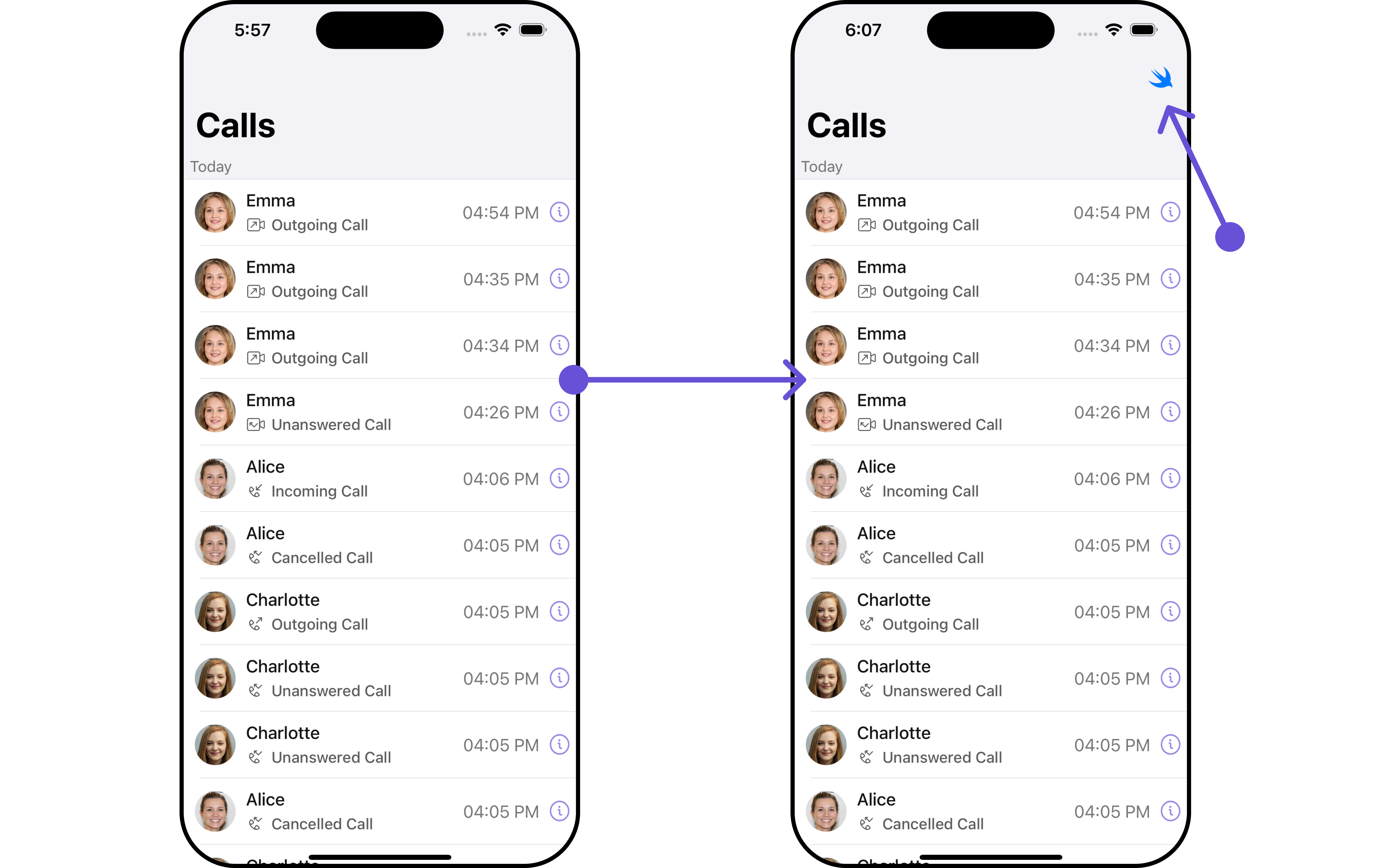 In this example, we'll craft a custom button tailored for `CometChatCallLogsWithDetails`, enhancing its interface with a personalized `menu` for a more user-friendly experience.
```swift theme={null}
let customMenuButton: UIBarButtonItem = {
let button = UIButton(type: .system)
button.setImage(UIImage(systemName: "swift"), for: .normal)
button.setTitle("", for: .normal)
button.addTarget(self, action: #selector(handleCustomMenu), for: .touchUpInside)
let barButtonItem = UIBarButtonItem(customView: button)
return barButtonItem
}()
let callLogWithDetails = CometChatCallLogsWithDetails()
.set(menus: [customMenuButton])
```
Ensure to pass and present `CometChatCallLogsWithDetails`. If a navigation controller is already in use, utilize the pushViewController function instead of directly presenting the view controller.
***
***
In this example, we'll craft a custom button tailored for `CometChatCallLogsWithDetails`, enhancing its interface with a personalized `menu` for a more user-friendly experience.
```swift theme={null}
let customMenuButton: UIBarButtonItem = {
let button = UIButton(type: .system)
button.setImage(UIImage(systemName: "swift"), for: .normal)
button.setTitle("", for: .normal)
button.addTarget(self, action: #selector(handleCustomMenu), for: .touchUpInside)
let barButtonItem = UIBarButtonItem(customView: button)
return barButtonItem
}()
let callLogWithDetails = CometChatCallLogsWithDetails()
.set(menus: [customMenuButton])
```
Ensure to pass and present `CometChatCallLogsWithDetails`. If a navigation controller is already in use, utilize the pushViewController function instead of directly presenting the view controller.
***
***