> ## Documentation Index
> Fetch the complete documentation index at: https://cometchat-22654f5b-docs-platform-docs-release.mintlify.site/llms.txt
> Use this file to discover all available pages before exploring further.
# One-to-One / Group Chat
> Build a focused one-to-one or group chat experience in Flutter with CometChat UI Kit.
| Field | Value |
| ------------ | ------------------------------------------------------------------------------ |
| Package | `cometchat_chat_uikit` |
| Framework | Flutter |
| Components | `CometChatMessageHeader`, `CometChatMessageList`, `CometChatMessageComposer` |
| Layout | Single chat window — no conversation list |
| Prerequisite | Complete [Getting Started](/ui-kit/flutter/v5/getting-started) Steps 1–4 first |
| Pattern | Support chat, embedded widgets, focused messaging |
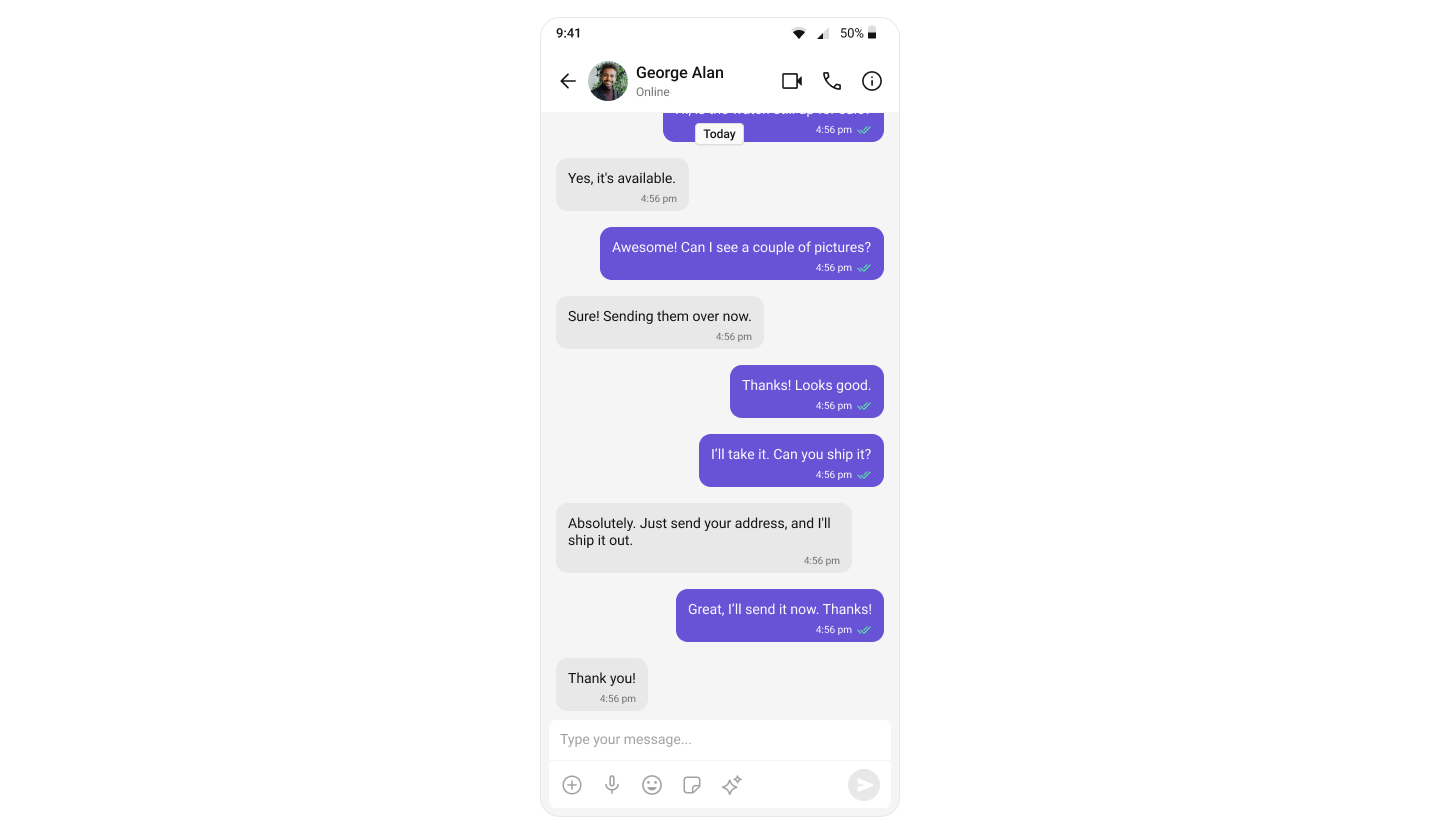
This guide builds a single chat window — no conversation list. Users go directly into a one-to-one or group chat. Good for support chat, deep links, or focused messaging.
This assumes you've already completed [Getting Started](/ui-kit/flutter/v5/getting-started) (project created, UI Kit installed, init + login working).
 [View Sample App on GitHub](https://github.com/cometchat/cometchat-uikit-flutter/tree/v5/sample_app)
***
## What You're Building
Three components stacked vertically:
1. **Chat header** — displays recipient name, avatar, and call buttons
2. **Message list** — real-time chat history
3. **Message composer** — text input with media and emojis
***
## Step 1 — Create the Chat Screen
The app fetches a user on mount and renders the message components.
```dart title="lib/chat_screen.dart" theme={null}
import 'dart:async';
import 'package:flutter/material.dart';
import 'package:cometchat_chat_uikit/cometchat_chat_uikit.dart';
class ChatScreen extends StatelessWidget {
const ChatScreen({super.key});
Future fetchUser(String uid) async {
final completer = Completer();
CometChat.getUser(
uid,
onSuccess: (user) => completer.complete(user),
onError: (error) => completer.completeError(error),
);
return completer.future;
}
@override
Widget build(BuildContext context) {
return FutureBuilder(
future: fetchUser("cometchat-uid-2"), // Replace with target UID
builder: (context, snapshot) {
if (snapshot.connectionState == ConnectionState.waiting) {
return const Scaffold(
body: Center(child: CircularProgressIndicator()),
);
}
if (snapshot.hasError) {
return Scaffold(
body: Center(child: Text('Error: ${snapshot.error}')),
);
}
final user = snapshot.data!;
return Scaffold(
appBar: CometChatMessageHeader(user: user),
body: SafeArea(
child: Column(
children: [
Expanded(child: CometChatMessageList(user: user)),
CometChatMessageComposer(user: user),
],
),
),
);
},
);
}
}
```
Key points:
* `CometChat.getUser(uid)` fetches the user object — you need a real user object, not a manually constructed one.
* Pass either `user` or `group` to the message components, never both.
***
## Switching to Group Chat
To load a group chat instead, use `CometChat.getGroup()`:
```dart theme={null}
Future fetchGroup(String guid) async {
final completer = Completer();
CometChat.getGroup(
guid,
onSuccess: (group) => completer.complete(group),
onError: (error) => completer.completeError(error),
);
return completer.future;
}
// Then in build():
FutureBuilder(
future: fetchGroup("your-group-guid"),
builder: (context, snapshot) {
if (snapshot.hasData) {
final group = snapshot.data!;
return Scaffold(
appBar: CometChatMessageHeader(group: group),
body: Column(
children: [
Expanded(child: CometChatMessageList(group: group)),
CometChatMessageComposer(group: group),
],
),
);
}
return const CircularProgressIndicator();
},
)
```
***
## Step 2 — Run the App
```bash theme={null}
flutter run
```
You should see the chat window load with the conversation for the UID you set.
***
## Next Steps
Customize the message view
Add a conversation list
Customize colors and styles
Handle real-time events
[View Sample App on GitHub](https://github.com/cometchat/cometchat-uikit-flutter/tree/v5/sample_app)
***
## What You're Building
Three components stacked vertically:
1. **Chat header** — displays recipient name, avatar, and call buttons
2. **Message list** — real-time chat history
3. **Message composer** — text input with media and emojis
***
## Step 1 — Create the Chat Screen
The app fetches a user on mount and renders the message components.
```dart title="lib/chat_screen.dart" theme={null}
import 'dart:async';
import 'package:flutter/material.dart';
import 'package:cometchat_chat_uikit/cometchat_chat_uikit.dart';
class ChatScreen extends StatelessWidget {
const ChatScreen({super.key});
Future fetchUser(String uid) async {
final completer = Completer();
CometChat.getUser(
uid,
onSuccess: (user) => completer.complete(user),
onError: (error) => completer.completeError(error),
);
return completer.future;
}
@override
Widget build(BuildContext context) {
return FutureBuilder(
future: fetchUser("cometchat-uid-2"), // Replace with target UID
builder: (context, snapshot) {
if (snapshot.connectionState == ConnectionState.waiting) {
return const Scaffold(
body: Center(child: CircularProgressIndicator()),
);
}
if (snapshot.hasError) {
return Scaffold(
body: Center(child: Text('Error: ${snapshot.error}')),
);
}
final user = snapshot.data!;
return Scaffold(
appBar: CometChatMessageHeader(user: user),
body: SafeArea(
child: Column(
children: [
Expanded(child: CometChatMessageList(user: user)),
CometChatMessageComposer(user: user),
],
),
),
);
},
);
}
}
```
Key points:
* `CometChat.getUser(uid)` fetches the user object — you need a real user object, not a manually constructed one.
* Pass either `user` or `group` to the message components, never both.
***
## Switching to Group Chat
To load a group chat instead, use `CometChat.getGroup()`:
```dart theme={null}
Future fetchGroup(String guid) async {
final completer = Completer();
CometChat.getGroup(
guid,
onSuccess: (group) => completer.complete(group),
onError: (error) => completer.completeError(error),
);
return completer.future;
}
// Then in build():
FutureBuilder(
future: fetchGroup("your-group-guid"),
builder: (context, snapshot) {
if (snapshot.hasData) {
final group = snapshot.data!;
return Scaffold(
appBar: CometChatMessageHeader(group: group),
body: Column(
children: [
Expanded(child: CometChatMessageList(group: group)),
CometChatMessageComposer(group: group),
],
),
);
}
return const CircularProgressIndicator();
},
)
```
***
## Step 2 — Run the App
```bash theme={null}
flutter run
```
You should see the chat window load with the conversation for the UID you set.
***
## Next Steps
Customize the message view
Add a conversation list
Customize colors and styles
Handle real-time events