> ## Documentation Index
> Fetch the complete documentation index at: https://cometchat-22654f5b-docs-platform-docs-release.mintlify.site/llms.txt
> Use this file to discover all available pages before exploring further.
# Building A One-to-One / Group Chat
> Launch a direct one-on-one or group chat screen without a conversation list for focused messaging.
| Field | Value |
| ------------ | --------------------------------------------------------------------------------------------------------------------------------------------------------------------- |
| Components | `CometChatMessageHeader`, `CometChatMessageList`, `CometChatMessageComposer` |
| Layout | Single chat window — no conversation list |
| Prerequisite | Complete [Kotlin Integration](/ui-kit/android/v6/getting-started-kotlin) or [Jetpack Compose Integration](/ui-kit/android/v6/getting-started-jetpack) Steps 1–3 first |
| Pattern | Support chat, embedded widgets, focused messaging |
This guide builds a single chat window — no sidebar, no conversation list. Users go directly into a one-to-one or group chat. Good for support chat, dating apps, or notification-driven flows.
This assumes you've already completed the integration guide for your chosen UI toolkit (project created, dependencies installed, init + login working).
***
## What You're Building
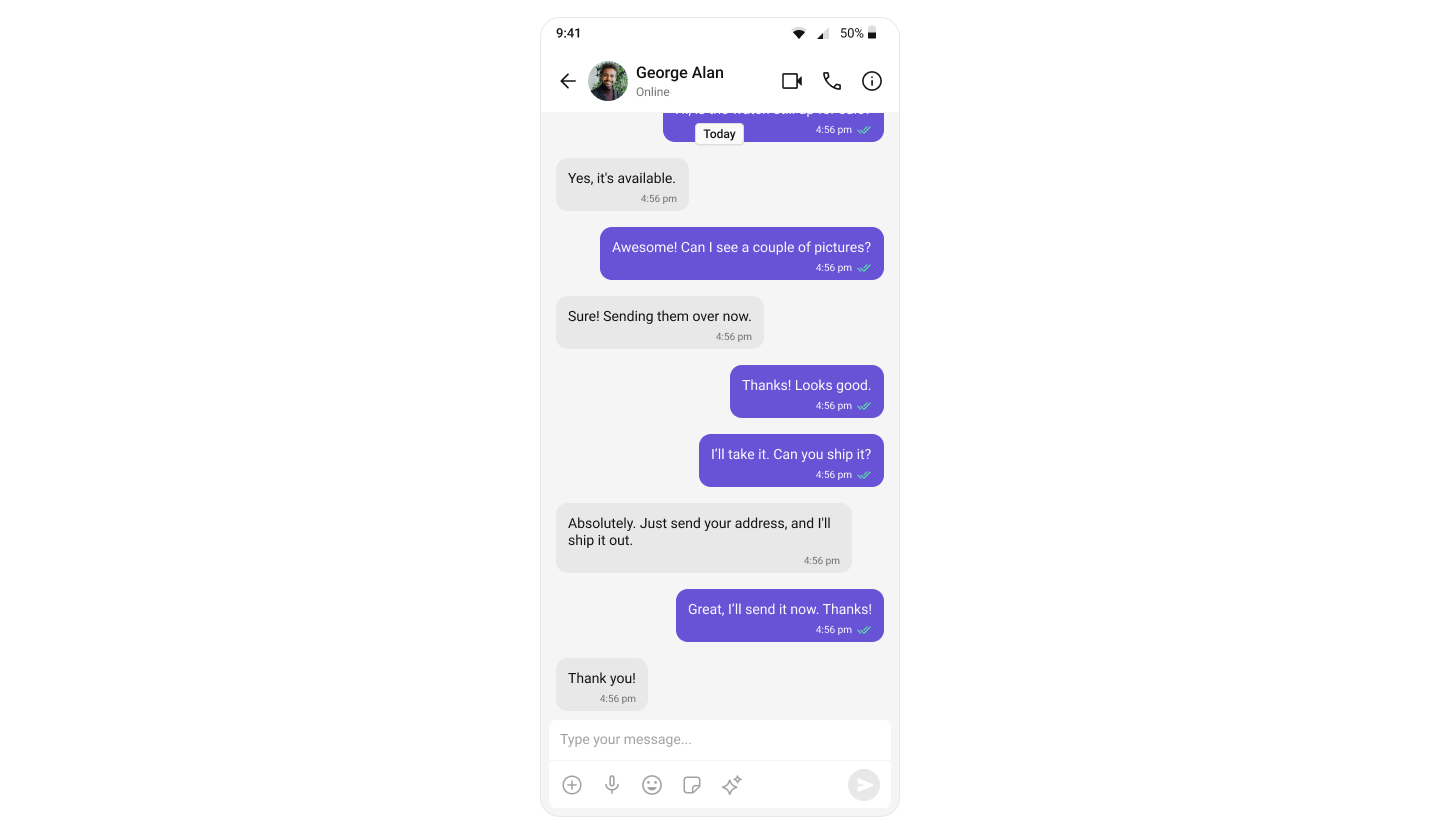 Three components stacked vertically:
1. **Message header** — displays user/group name, avatar, and status
2. **Message list** — real-time chat history with scrolling
3. **Message composer** — text input with media and attachments
***
## Step 1: Set Up the Message Screen
Create an Activity — `MessageActivity` to display the full-screen chat interface.
**Layout** — `activity_message.xml`:
```xml activity_message.xml lines theme={null}
```
**Activity** — `MessageActivity.kt`:
```kotlin MessageActivity.kt lines theme={null}
import android.os.Bundle
import android.widget.Toast
import androidx.activity.enableEdgeToEdge
import androidx.appcompat.app.AppCompatActivity
import com.cometchat.chat.models.Group
import com.cometchat.chat.models.User
import com.cometchat.uikit.kotlin.presentation.messagecomposer.ui.CometChatMessageComposer
import com.cometchat.uikit.kotlin.presentation.messageheader.ui.CometChatMessageHeader
import com.cometchat.uikit.kotlin.presentation.messagelist.ui.CometChatMessageList
class MessageActivity : AppCompatActivity() {
private lateinit var messageHeader: CometChatMessageHeader
private lateinit var messageList: CometChatMessageList
private lateinit var messageComposer: CometChatMessageComposer
override fun onCreate(savedInstanceState: Bundle?) {
super.onCreate(savedInstanceState)
enableEdgeToEdge()
setContentView(R.layout.activity_message)
messageHeader = findViewById(R.id.message_header)
messageList = findViewById(R.id.message_list)
messageComposer = findViewById(R.id.message_composer)
val user = intent.getSerializableExtra("user") as? User
val group = intent.getSerializableExtra("group") as? Group
when {
user != null -> {
messageHeader.setUser(user)
messageList.setUser(user)
messageComposer.setUser(user)
}
group != null -> {
messageHeader.setGroup(group)
messageList.setGroup(group)
messageComposer.setGroup(group)
}
else -> {
Toast.makeText(this, "Missing user or group data", Toast.LENGTH_SHORT).show()
finish()
}
}
messageHeader.setOnBackPress { finish() }
}
}
```
You must use an activity that supports the **lifecycle** API (`AppCompatActivity`, `ComponentActivity`, or `FragmentActivity`) to properly manage the UI Kit's lifecycle events.
Create a `MessageScreen` composable with header, list, and composer stacked vertically:
```kotlin MessageScreen.kt lines theme={null}
import androidx.compose.foundation.layout.Column
import androidx.compose.foundation.layout.WindowInsets
import androidx.compose.foundation.layout.consumeWindowInsets
import androidx.compose.foundation.layout.fillMaxSize
import androidx.compose.foundation.layout.fillMaxWidth
import androidx.compose.foundation.layout.imePadding
import androidx.compose.foundation.layout.navigationBarsPadding
import androidx.compose.foundation.layout.padding
import androidx.compose.foundation.layout.statusBars
import androidx.compose.material3.Scaffold
import androidx.compose.runtime.Composable
import androidx.compose.ui.Modifier
import com.cometchat.chat.models.Group
import com.cometchat.chat.models.User
import com.cometchat.uikit.compose.presentation.messagecomposer.ui.CometChatMessageComposer
import com.cometchat.uikit.compose.presentation.messageheader.ui.CometChatMessageHeader
import com.cometchat.uikit.compose.presentation.messagelist.ui.CometChatMessageList
@Composable
fun MessageScreen(
user: User? = null,
group: Group? = null,
onBack: () -> Unit
) {
Scaffold(
contentWindowInsets = WindowInsets.statusBars
) { paddingValues ->
Column(
modifier = Modifier
.fillMaxSize()
.padding(paddingValues)
.consumeWindowInsets(paddingValues)
.navigationBarsPadding()
.imePadding()
) {
CometChatMessageHeader(
modifier = Modifier.fillMaxWidth(),
user = user,
group = group,
hideBackButton = false,
onBackPress = onBack
)
CometChatMessageList(
modifier = Modifier
.fillMaxWidth()
.weight(1f),
user = user,
group = group
)
CometChatMessageComposer(
modifier = Modifier.fillMaxWidth(),
user = user,
group = group
)
}
}
}
```
***
## Step 2: Launch a One-to-One Chat
To open a direct chat with a specific user, pass the `User` object when launching the screen.
```kotlin lines theme={null}
// From any Activity — pass the User object via Intent
val intent = Intent(this, MessageActivity::class.java)
intent.putExtra("user", user) // User is Serializable
startActivity(intent)
```
Full example after login:
```kotlin MainActivity.kt lines theme={null}
private fun loginUser() {
CometChatUIKit.login("cometchat-uid-1", object : CometChat.CallbackListener() {
override fun onSuccess(user: User) {
Log.d(TAG, "Login successful: ${user.uid}")
// Fetch the target user, then launch the chat
CometChat.getUser("cometchat-uid-2", object : CometChat.CallbackListener() {
override fun onSuccess(targetUser: User) {
val intent = Intent(this@MainActivity, MessageActivity::class.java)
intent.putExtra("user", targetUser)
startActivity(intent)
}
override fun onError(e: CometChatException?) {
Log.e(TAG, "Error fetching user: ${e?.message}")
}
})
}
override fun onError(e: CometChatException) {
Log.e(TAG, "Login failed: ${e.message}")
}
})
}
```
```kotlin lines theme={null}
// Pass the User object directly to the composable
MessageScreen(
user = targetUser,
onBack = { /* navigate back */ }
)
```
Full example after login:
```kotlin MainActivity.kt lines theme={null}
setContent {
when {
error != null -> {
Box(Modifier.fillMaxSize(), contentAlignment = Alignment.Center) {
Text(error ?: "Unknown error")
}
}
!isReady -> {
Box(Modifier.fillMaxSize(), contentAlignment = Alignment.Center) {
CircularProgressIndicator()
}
}
else -> {
// targetUser is fetched after login
MessageScreen(
user = targetUser,
onBack = { finish() }
)
}
}
}
```
***
## Step 3: Launch a Group Chat
To open a group chat, pass the `Group` object instead.
```kotlin lines theme={null}
// From any Activity — pass the Group object via Intent
val intent = Intent(this, MessageActivity::class.java)
intent.putExtra("group", group) // Group is Serializable
startActivity(intent)
```
Full example after login:
```kotlin MainActivity.kt lines theme={null}
private fun loginUser() {
CometChatUIKit.login("cometchat-uid-1", object : CometChat.CallbackListener() {
override fun onSuccess(user: User) {
Log.d(TAG, "Login successful: ${user.uid}")
// Fetch the target group, then launch the chat
CometChat.getGroup("cometchat-guid-1", object : CometChat.CallbackListener() {
override fun onSuccess(group: Group) {
val intent = Intent(this@MainActivity, MessageActivity::class.java)
intent.putExtra("group", group)
startActivity(intent)
}
override fun onError(e: CometChatException?) {
Log.e(TAG, "Error fetching group: ${e?.message}")
}
})
}
override fun onError(e: CometChatException) {
Log.e(TAG, "Login failed: ${e.message}")
}
})
}
```
```kotlin lines theme={null}
// Pass the Group object directly to the composable
MessageScreen(
group = targetGroup,
onBack = { /* navigate back */ }
)
```
Full example after login:
```kotlin MainActivity.kt lines theme={null}
setContent {
when {
error != null -> {
Box(Modifier.fillMaxSize(), contentAlignment = Alignment.Center) {
Text(error ?: "Unknown error")
}
}
!isReady -> {
Box(Modifier.fillMaxSize(), contentAlignment = Alignment.Center) {
CircularProgressIndicator()
}
}
else -> {
// targetGroup is fetched after login
MessageScreen(
group = targetGroup,
onBack = { finish() }
)
}
}
}
```
***
## Step 4: Register Activity & Permissions
Add the activity to your `AndroidManifest.xml`:
```xml AndroidManifest.xml lines theme={null}
```
No additional activities needed — everything runs inside your existing `MainActivity`.
Ensure you've added the required permissions in your `AndroidManifest.xml`:
```xml AndroidManifest.xml lines theme={null}
```
***
## Next Steps
Explore all available UI Kit components and their customization options
Customize colors, fonts, and styles to match your brand
Back to the main integration guide
Add capabilities like threaded messages, blocking, and group management
Three components stacked vertically:
1. **Message header** — displays user/group name, avatar, and status
2. **Message list** — real-time chat history with scrolling
3. **Message composer** — text input with media and attachments
***
## Step 1: Set Up the Message Screen
Create an Activity — `MessageActivity` to display the full-screen chat interface.
**Layout** — `activity_message.xml`:
```xml activity_message.xml lines theme={null}
```
**Activity** — `MessageActivity.kt`:
```kotlin MessageActivity.kt lines theme={null}
import android.os.Bundle
import android.widget.Toast
import androidx.activity.enableEdgeToEdge
import androidx.appcompat.app.AppCompatActivity
import com.cometchat.chat.models.Group
import com.cometchat.chat.models.User
import com.cometchat.uikit.kotlin.presentation.messagecomposer.ui.CometChatMessageComposer
import com.cometchat.uikit.kotlin.presentation.messageheader.ui.CometChatMessageHeader
import com.cometchat.uikit.kotlin.presentation.messagelist.ui.CometChatMessageList
class MessageActivity : AppCompatActivity() {
private lateinit var messageHeader: CometChatMessageHeader
private lateinit var messageList: CometChatMessageList
private lateinit var messageComposer: CometChatMessageComposer
override fun onCreate(savedInstanceState: Bundle?) {
super.onCreate(savedInstanceState)
enableEdgeToEdge()
setContentView(R.layout.activity_message)
messageHeader = findViewById(R.id.message_header)
messageList = findViewById(R.id.message_list)
messageComposer = findViewById(R.id.message_composer)
val user = intent.getSerializableExtra("user") as? User
val group = intent.getSerializableExtra("group") as? Group
when {
user != null -> {
messageHeader.setUser(user)
messageList.setUser(user)
messageComposer.setUser(user)
}
group != null -> {
messageHeader.setGroup(group)
messageList.setGroup(group)
messageComposer.setGroup(group)
}
else -> {
Toast.makeText(this, "Missing user or group data", Toast.LENGTH_SHORT).show()
finish()
}
}
messageHeader.setOnBackPress { finish() }
}
}
```
You must use an activity that supports the **lifecycle** API (`AppCompatActivity`, `ComponentActivity`, or `FragmentActivity`) to properly manage the UI Kit's lifecycle events.
Create a `MessageScreen` composable with header, list, and composer stacked vertically:
```kotlin MessageScreen.kt lines theme={null}
import androidx.compose.foundation.layout.Column
import androidx.compose.foundation.layout.WindowInsets
import androidx.compose.foundation.layout.consumeWindowInsets
import androidx.compose.foundation.layout.fillMaxSize
import androidx.compose.foundation.layout.fillMaxWidth
import androidx.compose.foundation.layout.imePadding
import androidx.compose.foundation.layout.navigationBarsPadding
import androidx.compose.foundation.layout.padding
import androidx.compose.foundation.layout.statusBars
import androidx.compose.material3.Scaffold
import androidx.compose.runtime.Composable
import androidx.compose.ui.Modifier
import com.cometchat.chat.models.Group
import com.cometchat.chat.models.User
import com.cometchat.uikit.compose.presentation.messagecomposer.ui.CometChatMessageComposer
import com.cometchat.uikit.compose.presentation.messageheader.ui.CometChatMessageHeader
import com.cometchat.uikit.compose.presentation.messagelist.ui.CometChatMessageList
@Composable
fun MessageScreen(
user: User? = null,
group: Group? = null,
onBack: () -> Unit
) {
Scaffold(
contentWindowInsets = WindowInsets.statusBars
) { paddingValues ->
Column(
modifier = Modifier
.fillMaxSize()
.padding(paddingValues)
.consumeWindowInsets(paddingValues)
.navigationBarsPadding()
.imePadding()
) {
CometChatMessageHeader(
modifier = Modifier.fillMaxWidth(),
user = user,
group = group,
hideBackButton = false,
onBackPress = onBack
)
CometChatMessageList(
modifier = Modifier
.fillMaxWidth()
.weight(1f),
user = user,
group = group
)
CometChatMessageComposer(
modifier = Modifier.fillMaxWidth(),
user = user,
group = group
)
}
}
}
```
***
## Step 2: Launch a One-to-One Chat
To open a direct chat with a specific user, pass the `User` object when launching the screen.
```kotlin lines theme={null}
// From any Activity — pass the User object via Intent
val intent = Intent(this, MessageActivity::class.java)
intent.putExtra("user", user) // User is Serializable
startActivity(intent)
```
Full example after login:
```kotlin MainActivity.kt lines theme={null}
private fun loginUser() {
CometChatUIKit.login("cometchat-uid-1", object : CometChat.CallbackListener() {
override fun onSuccess(user: User) {
Log.d(TAG, "Login successful: ${user.uid}")
// Fetch the target user, then launch the chat
CometChat.getUser("cometchat-uid-2", object : CometChat.CallbackListener() {
override fun onSuccess(targetUser: User) {
val intent = Intent(this@MainActivity, MessageActivity::class.java)
intent.putExtra("user", targetUser)
startActivity(intent)
}
override fun onError(e: CometChatException?) {
Log.e(TAG, "Error fetching user: ${e?.message}")
}
})
}
override fun onError(e: CometChatException) {
Log.e(TAG, "Login failed: ${e.message}")
}
})
}
```
```kotlin lines theme={null}
// Pass the User object directly to the composable
MessageScreen(
user = targetUser,
onBack = { /* navigate back */ }
)
```
Full example after login:
```kotlin MainActivity.kt lines theme={null}
setContent {
when {
error != null -> {
Box(Modifier.fillMaxSize(), contentAlignment = Alignment.Center) {
Text(error ?: "Unknown error")
}
}
!isReady -> {
Box(Modifier.fillMaxSize(), contentAlignment = Alignment.Center) {
CircularProgressIndicator()
}
}
else -> {
// targetUser is fetched after login
MessageScreen(
user = targetUser,
onBack = { finish() }
)
}
}
}
```
***
## Step 3: Launch a Group Chat
To open a group chat, pass the `Group` object instead.
```kotlin lines theme={null}
// From any Activity — pass the Group object via Intent
val intent = Intent(this, MessageActivity::class.java)
intent.putExtra("group", group) // Group is Serializable
startActivity(intent)
```
Full example after login:
```kotlin MainActivity.kt lines theme={null}
private fun loginUser() {
CometChatUIKit.login("cometchat-uid-1", object : CometChat.CallbackListener() {
override fun onSuccess(user: User) {
Log.d(TAG, "Login successful: ${user.uid}")
// Fetch the target group, then launch the chat
CometChat.getGroup("cometchat-guid-1", object : CometChat.CallbackListener() {
override fun onSuccess(group: Group) {
val intent = Intent(this@MainActivity, MessageActivity::class.java)
intent.putExtra("group", group)
startActivity(intent)
}
override fun onError(e: CometChatException?) {
Log.e(TAG, "Error fetching group: ${e?.message}")
}
})
}
override fun onError(e: CometChatException) {
Log.e(TAG, "Login failed: ${e.message}")
}
})
}
```
```kotlin lines theme={null}
// Pass the Group object directly to the composable
MessageScreen(
group = targetGroup,
onBack = { /* navigate back */ }
)
```
Full example after login:
```kotlin MainActivity.kt lines theme={null}
setContent {
when {
error != null -> {
Box(Modifier.fillMaxSize(), contentAlignment = Alignment.Center) {
Text(error ?: "Unknown error")
}
}
!isReady -> {
Box(Modifier.fillMaxSize(), contentAlignment = Alignment.Center) {
CircularProgressIndicator()
}
}
else -> {
// targetGroup is fetched after login
MessageScreen(
group = targetGroup,
onBack = { finish() }
)
}
}
}
```
***
## Step 4: Register Activity & Permissions
Add the activity to your `AndroidManifest.xml`:
```xml AndroidManifest.xml lines theme={null}
```
No additional activities needed — everything runs inside your existing `MainActivity`.
Ensure you've added the required permissions in your `AndroidManifest.xml`:
```xml AndroidManifest.xml lines theme={null}
```
***
## Next Steps
Explore all available UI Kit components and their customization options
Customize colors, fonts, and styles to match your brand
Back to the main integration guide
Add capabilities like threaded messages, blocking, and group management